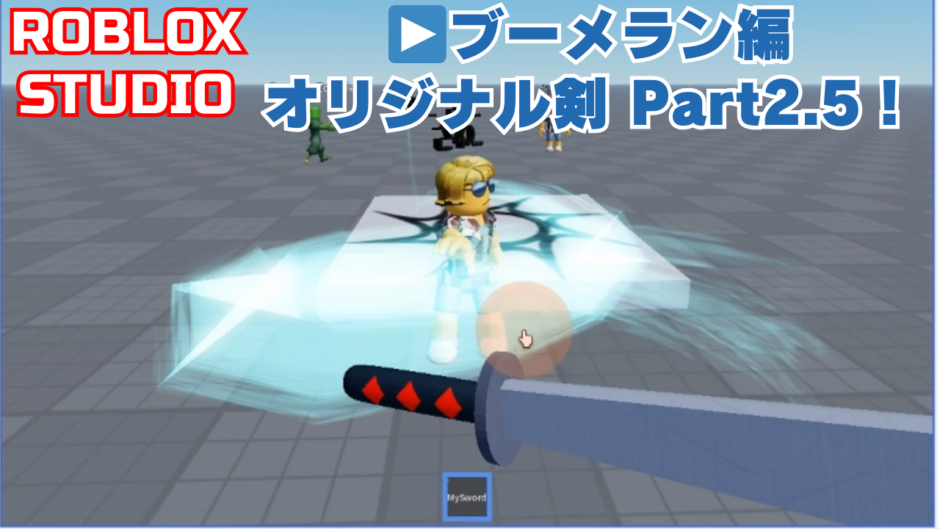

「オリジナル剣を作ろうパート2」で作った剣を、アニメーションでブーメランのように投げれるようにしよう!
「剣を振るだけじゃ物足りない!」「飛び道具のような動きを作りたい!」という方は必見です。Motor6Dの仕組みを理解して、ワンランク上のアニメーション作りに挑戦しましょう!✨

💡アニメーション編「オリジナル剣」を作る パート2!アニメーション編【完全解説】
🔧 この動画で学べること
✅ 1. 剣ツール(MySwordl)をRigにセットアップする方法
✅ 2. Motor6Dを使って剣本体にアニメーションをつけるコツ
✅ 3. 剣を飛ばして戻すためのポーズ設定
✅ 4. スクリプトの書き換え(Motor6Dの切り替え処理)
📺 チャプター目次 :
00:00 オープニング・完成品の紹介
00:10 剣にアニメーションをつける事前設定
01:16 ブーメラン剣のアニメーション作成
02:06 アニメーションのRobloxへ公開とIDコピー
02:39 アニメーションのスクリプトへの適用
03:31 アニメーションのテスト
📥 完成版プレイスをダウンロード(Roblox Studio)
※リンク先の右上にある「…」ボタンから「Studioで編集」を選択すると、中身を確認できます。
1. オリジナル剣(MySword)にアニメーションをつける事前設定
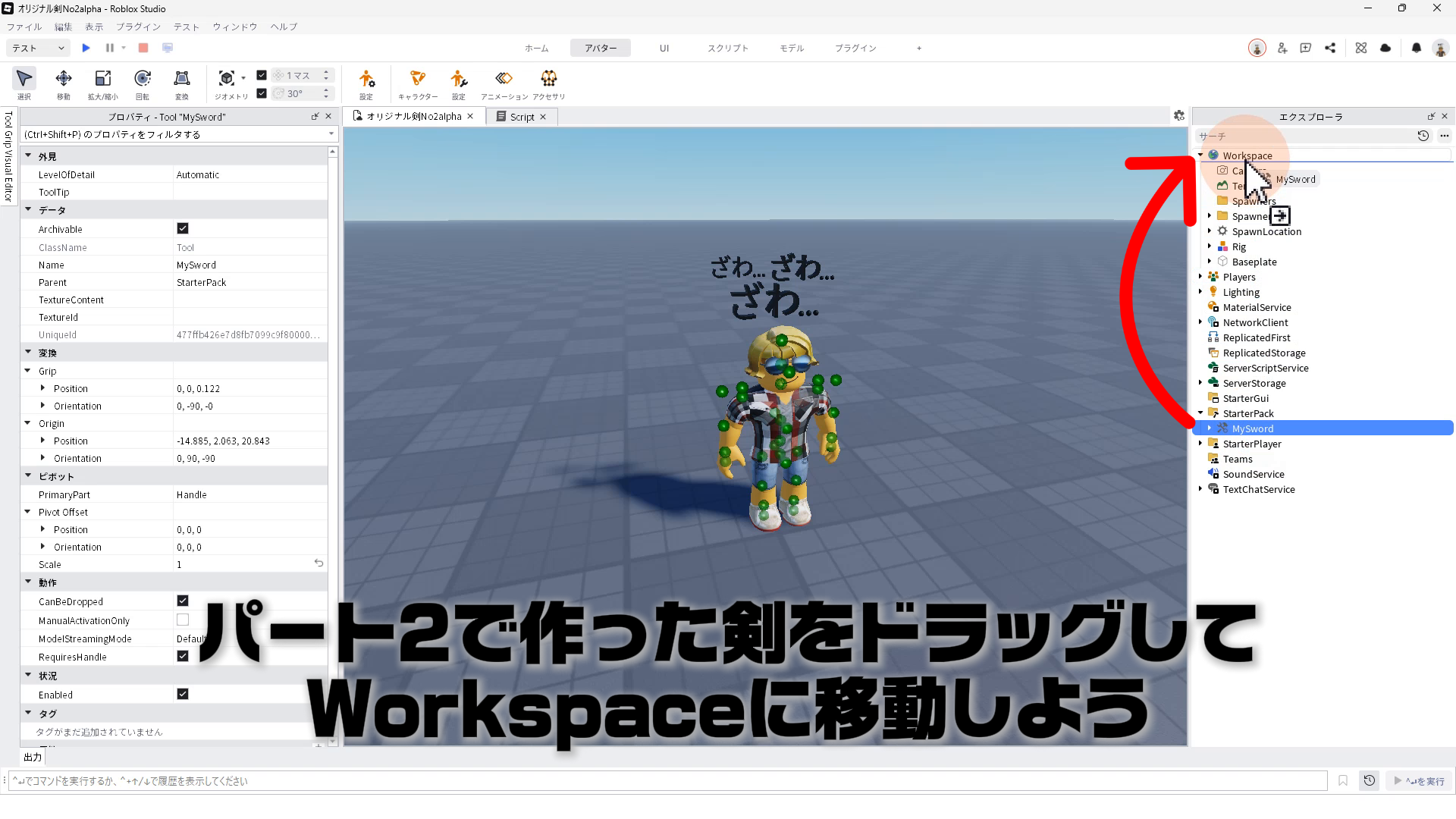
STEP.2
MySwordをドラッグして、Rigの子要素に入る
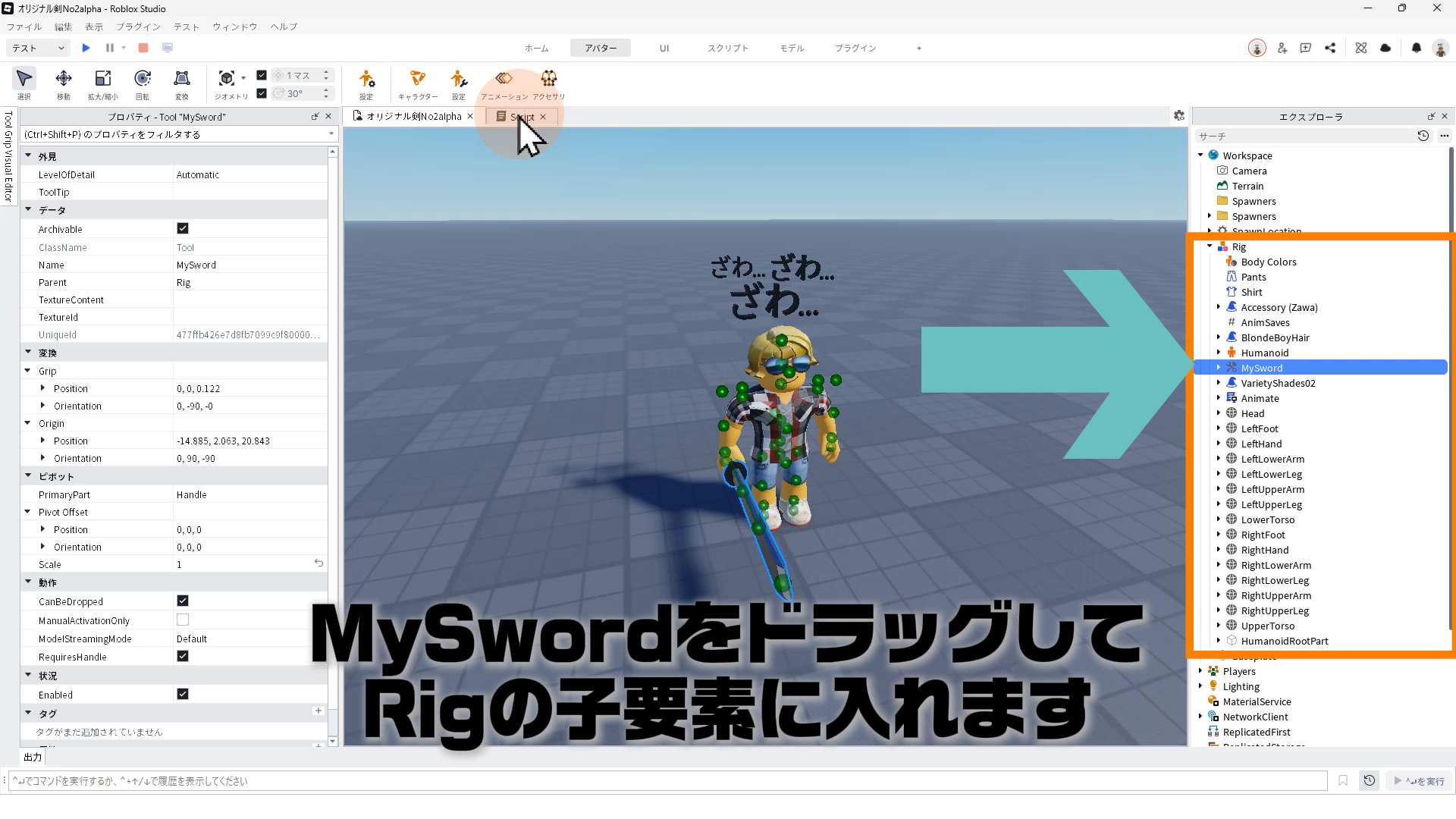
STEP.3
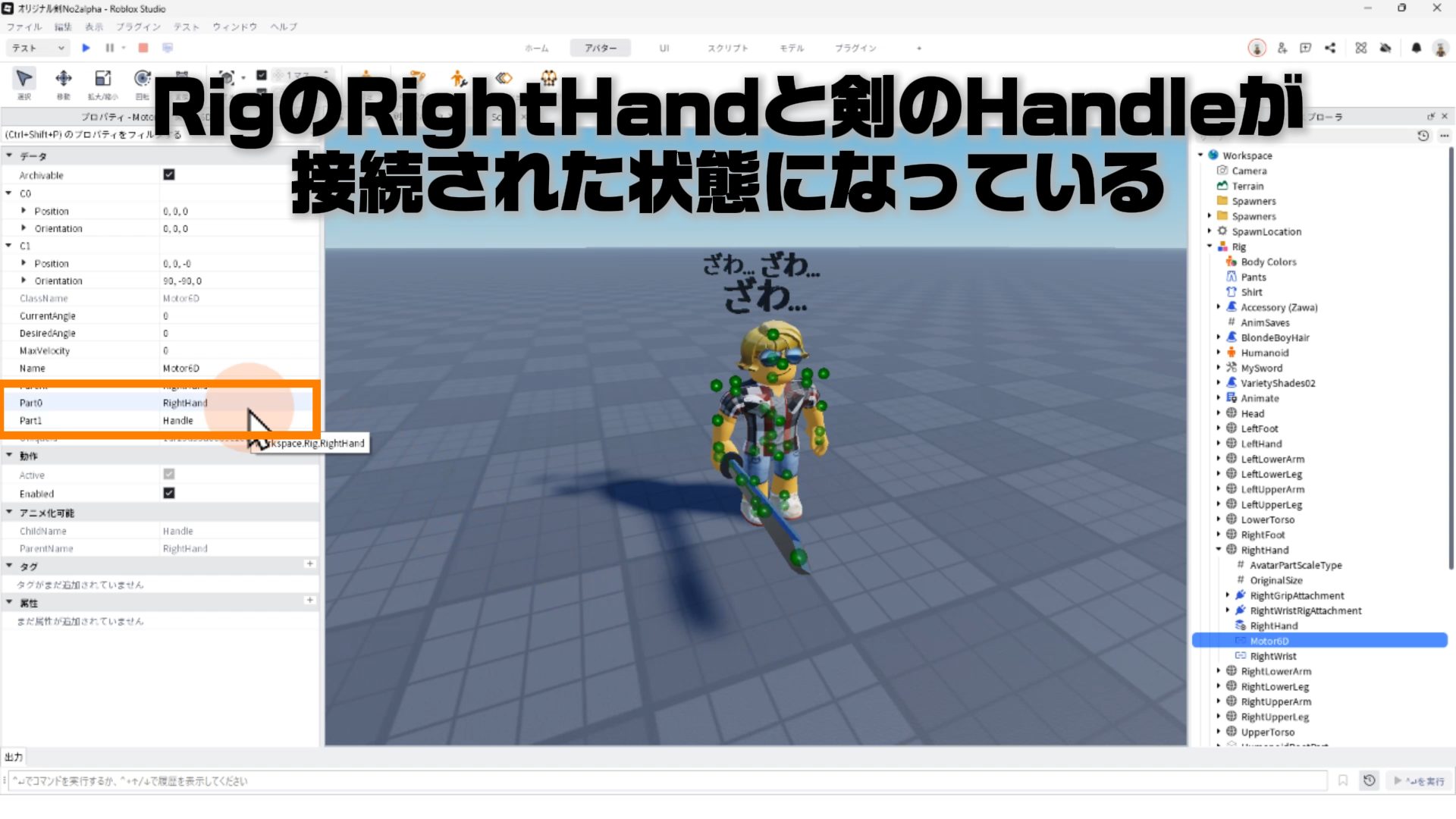
のRigのRightHandを見ると、パート2で作ったMotor6Dというオブジェクトがある
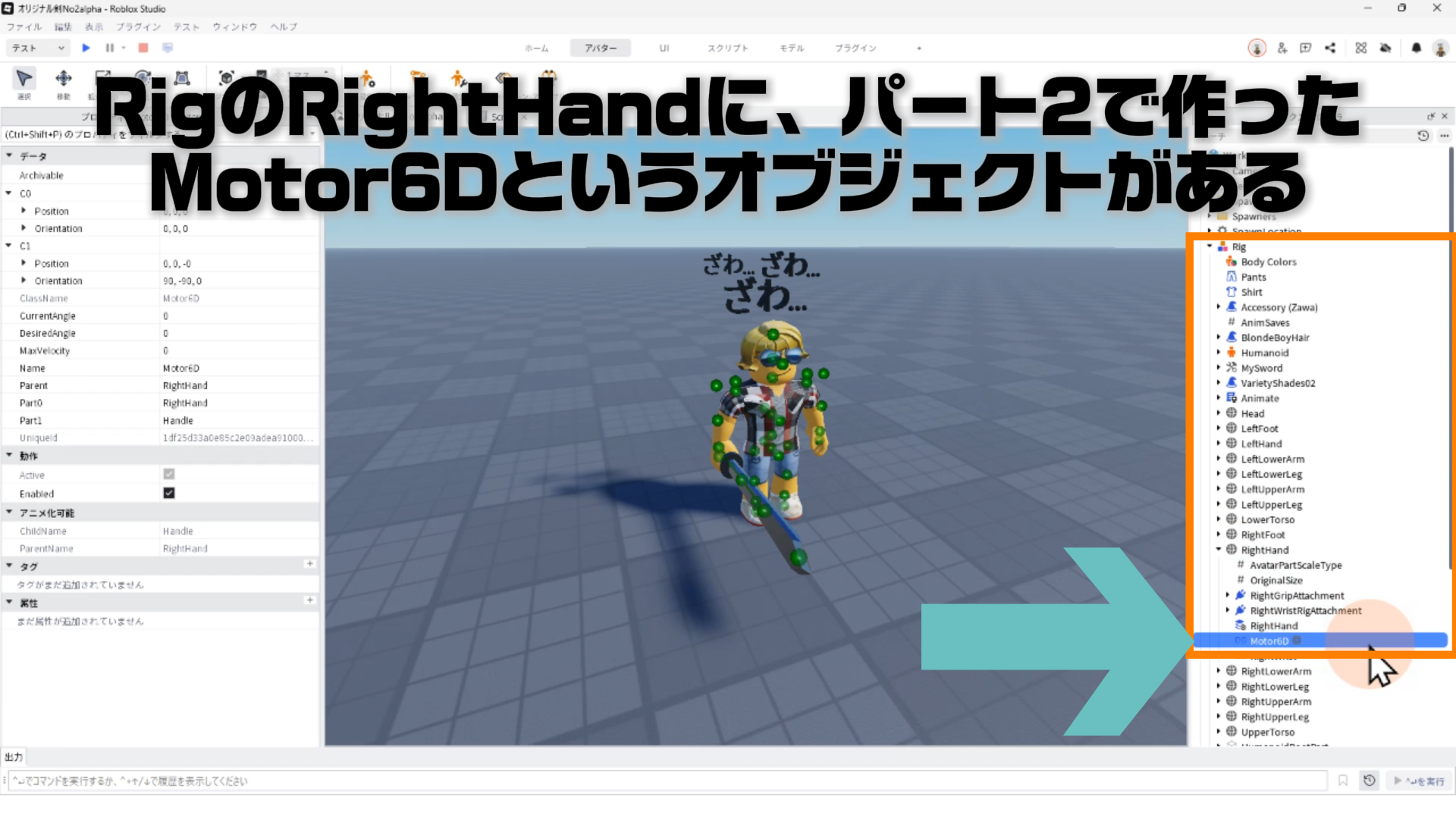
STEP.4
Moter6DでRightHandと剣のHandleが接続されている
STEP.5
この設定により、キャラクターの動きだけでなく、剣自体にアニメーションの設定ができる
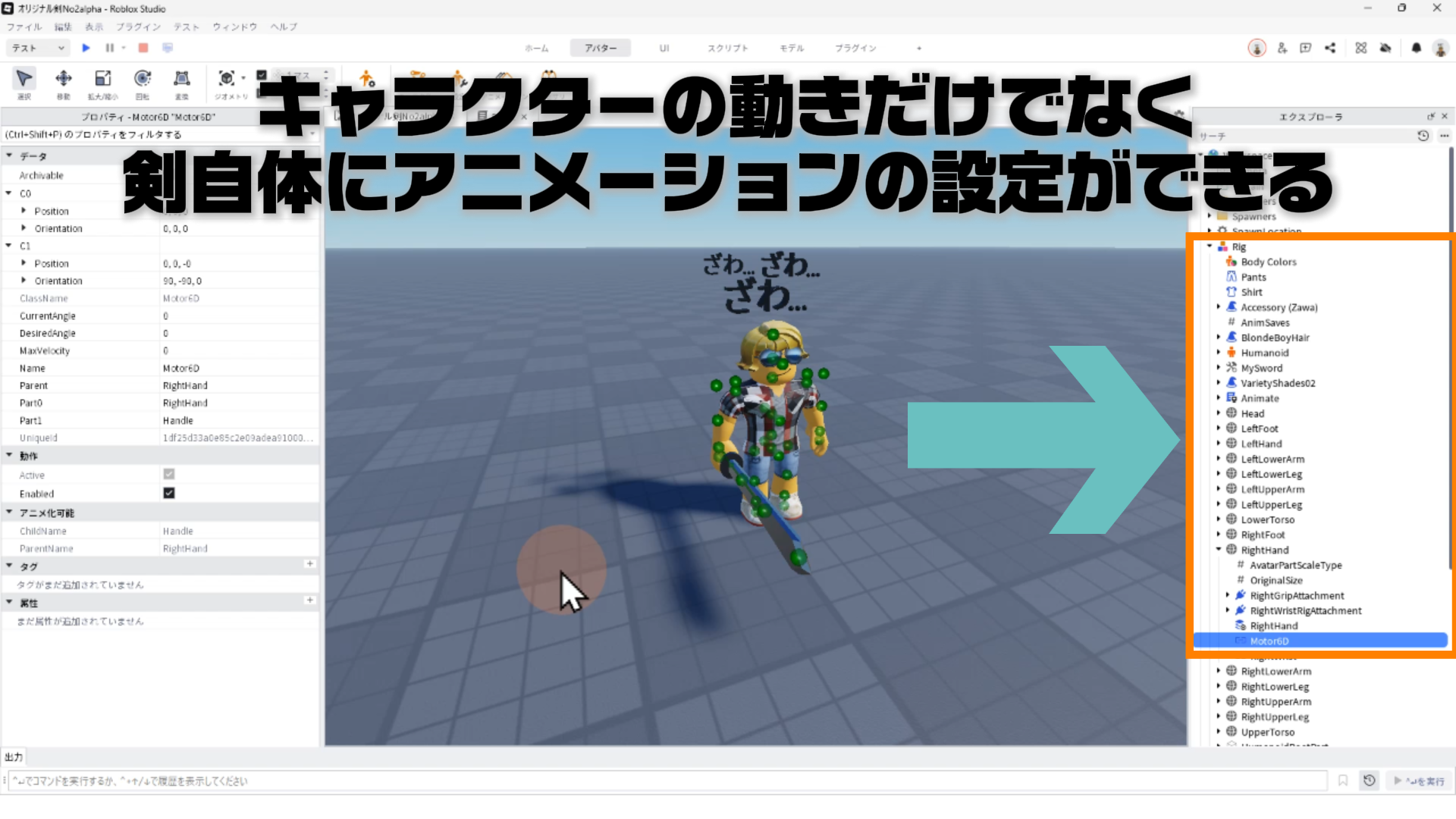
※この設定により、剣を投げるようなアニメーションを設定することができます。
2. ブーメラン剣のアニメーションを作成
STEP.1
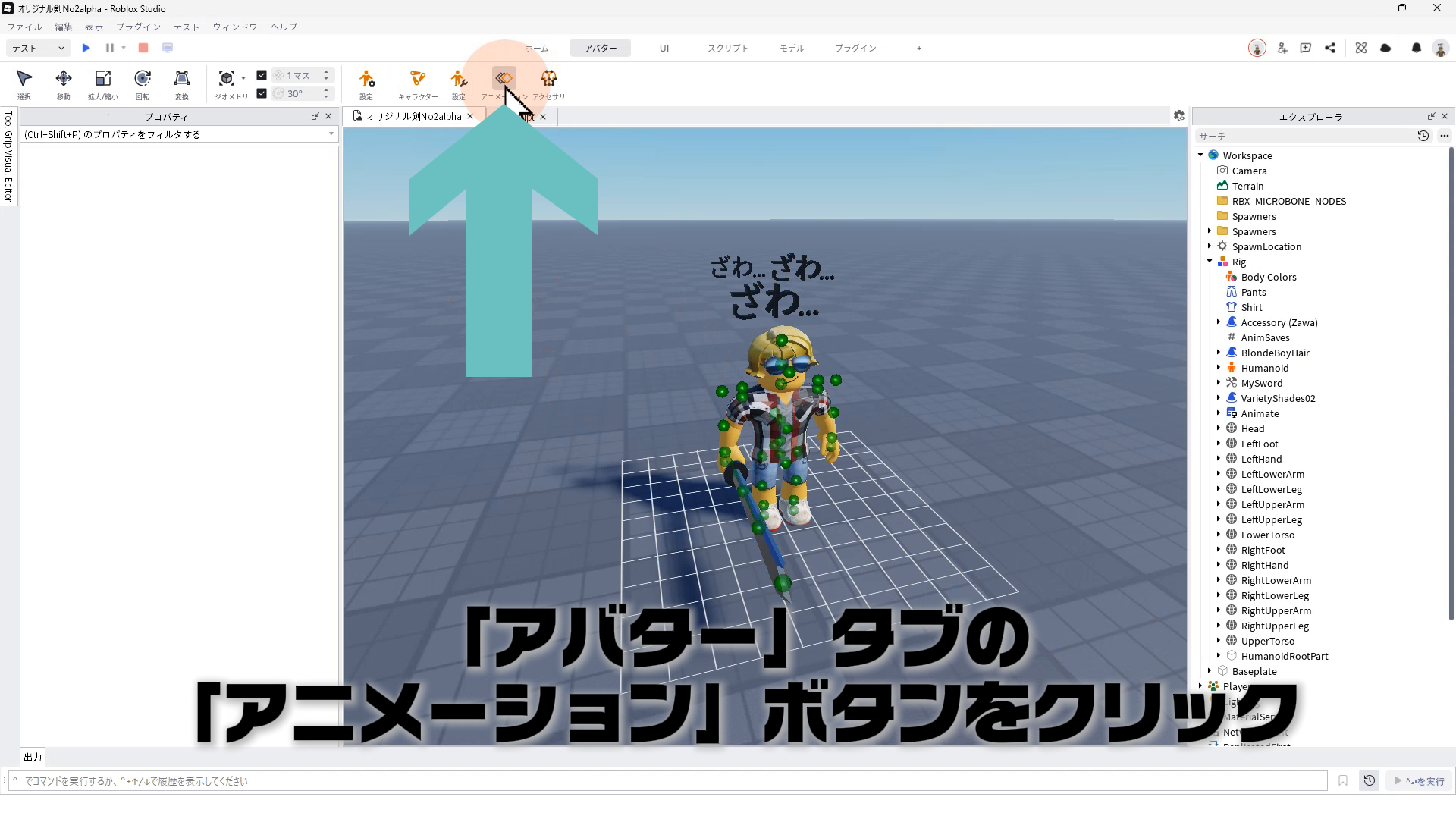
「アバター」タブの「アニメーション」ボタンをクリック
STEP.2
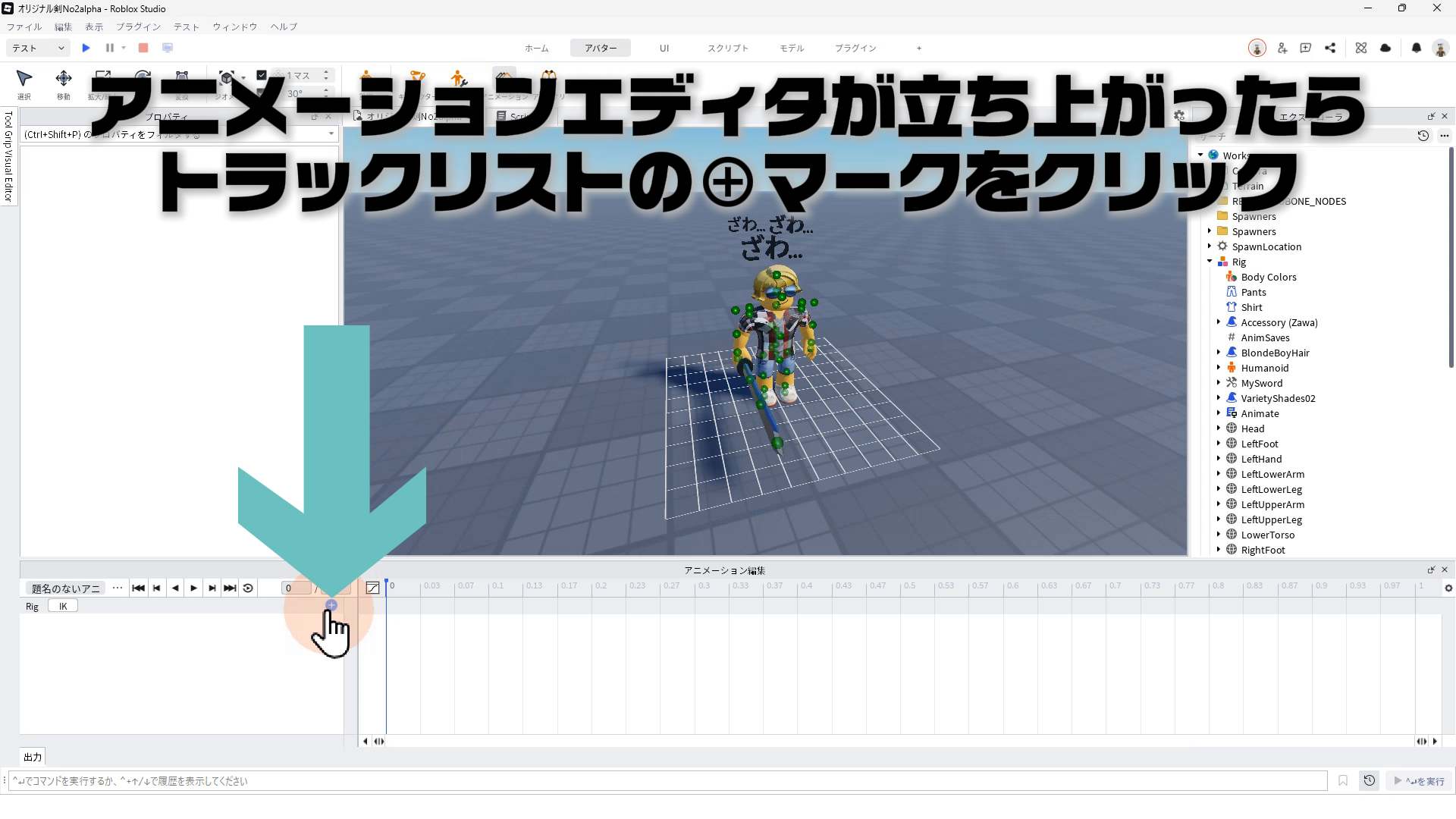
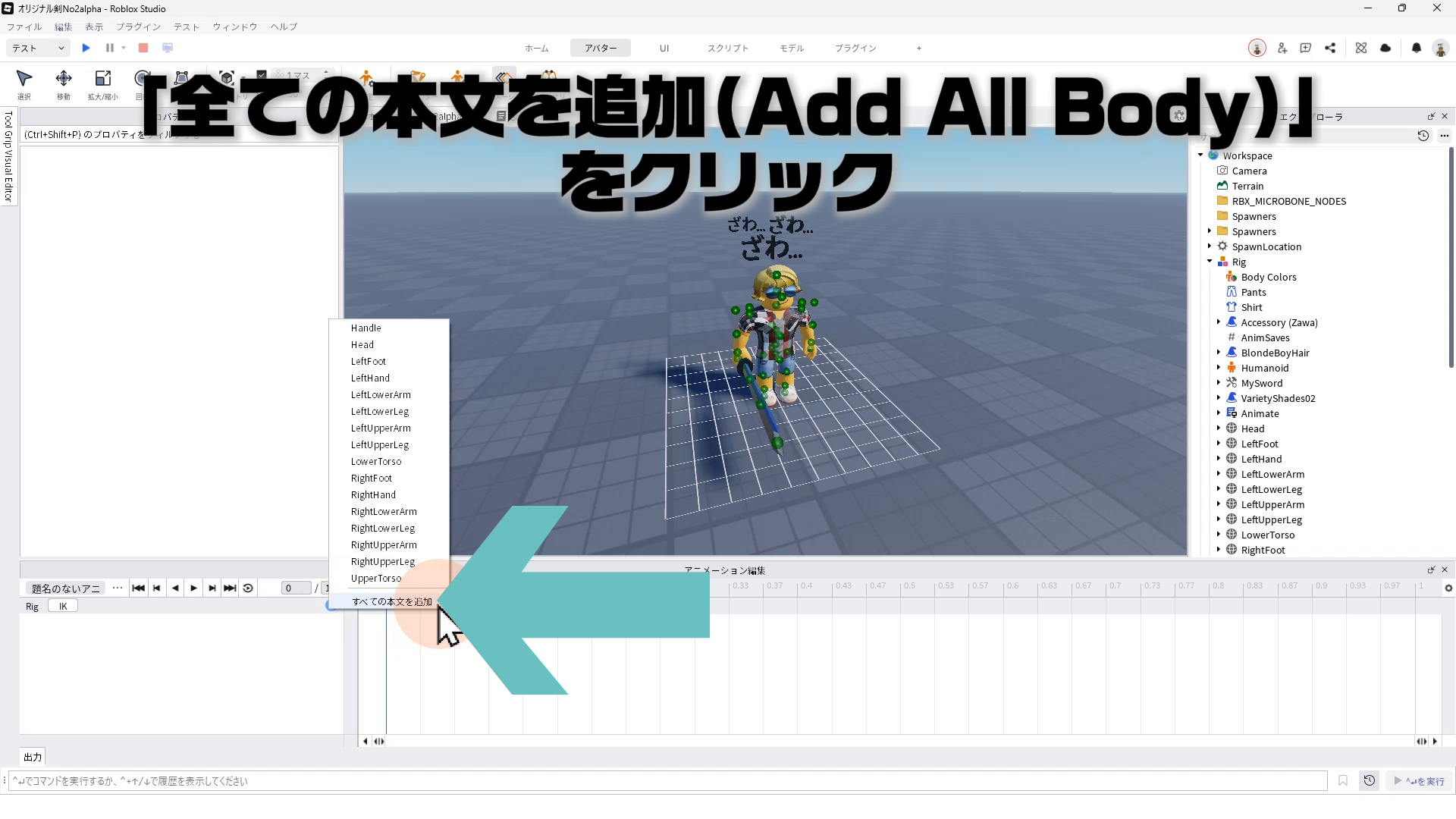
アニメーションエディターが立ち上がったらトラックリストの⊕マークをクリック
STEP.3
「全ての本文を追加(Add All Body)」をクリック
STEP.4
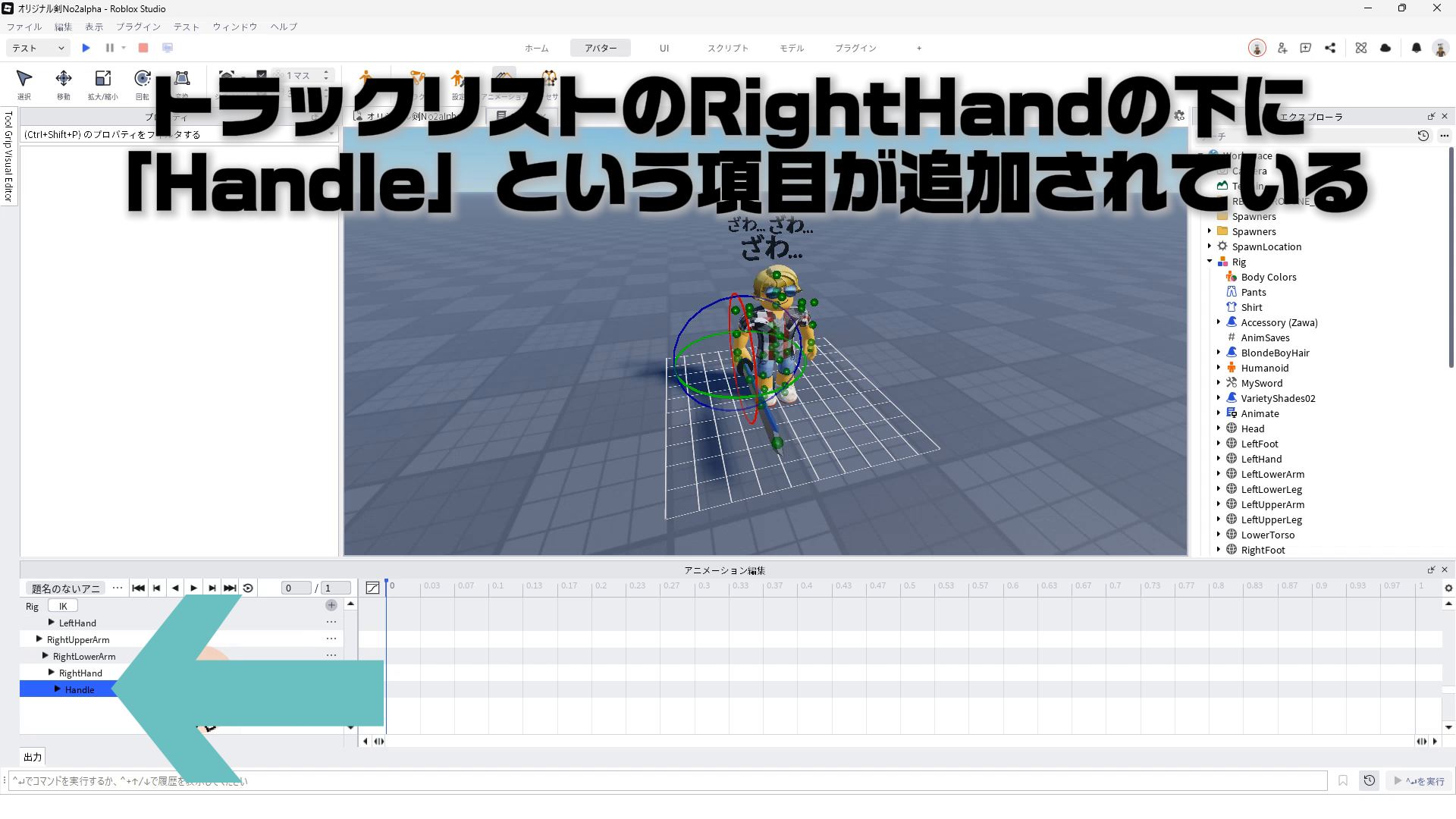
トラックリストを見ると、RightHandの下に「Handle」という項目が追加される
STEP.5
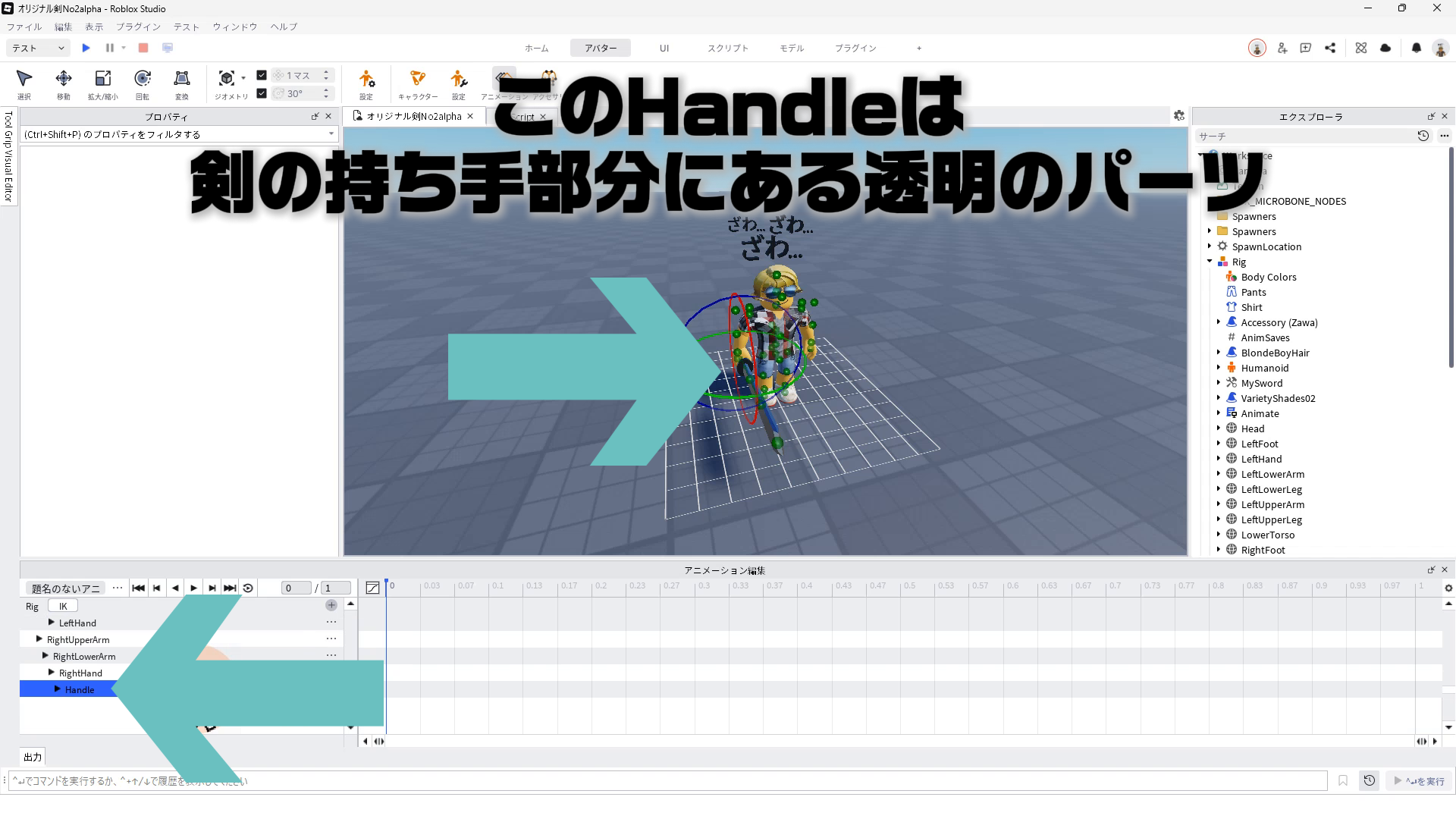
このHandleは剣の持ち手部分にある透明のパーツ
STEP.6
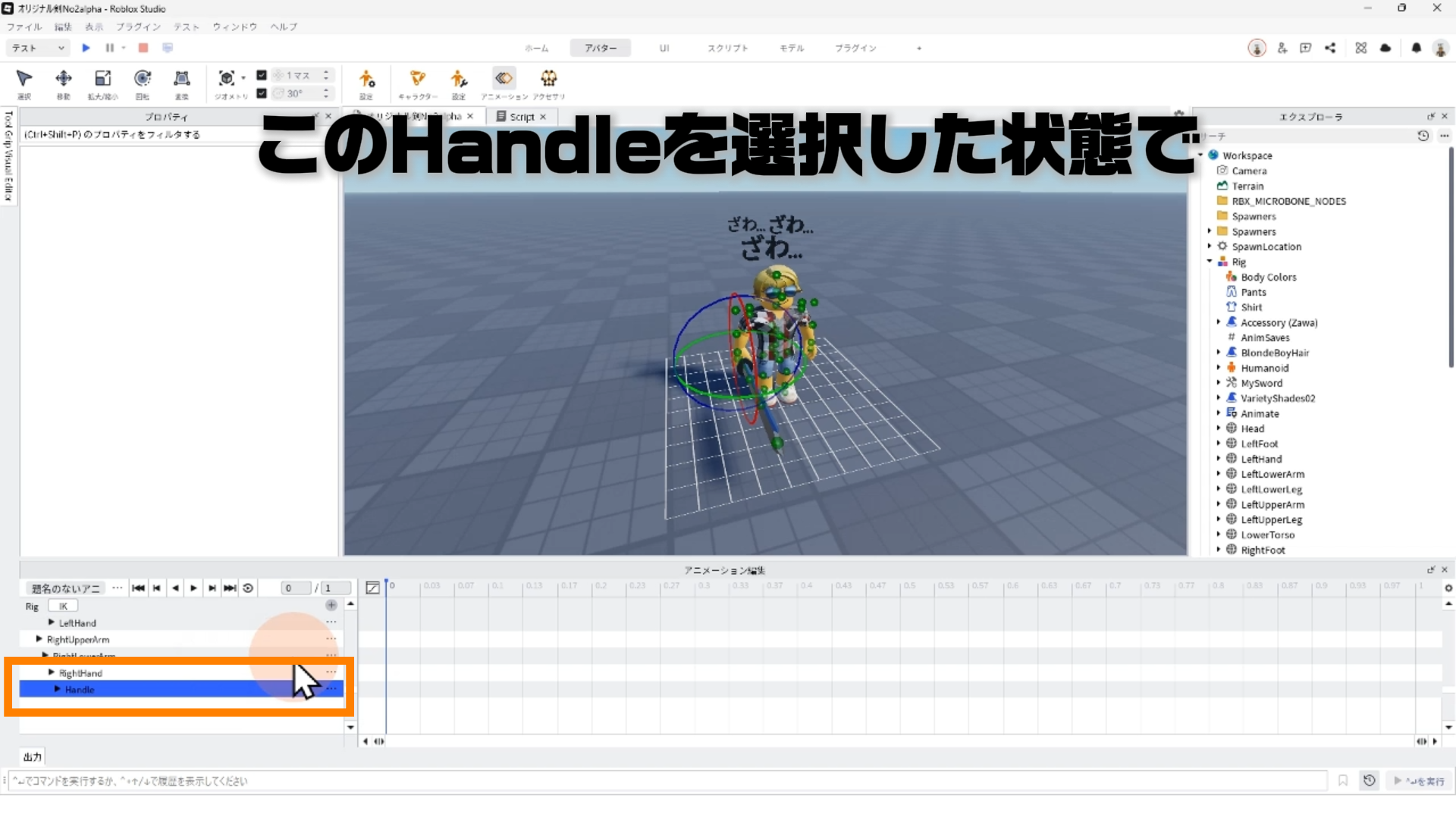
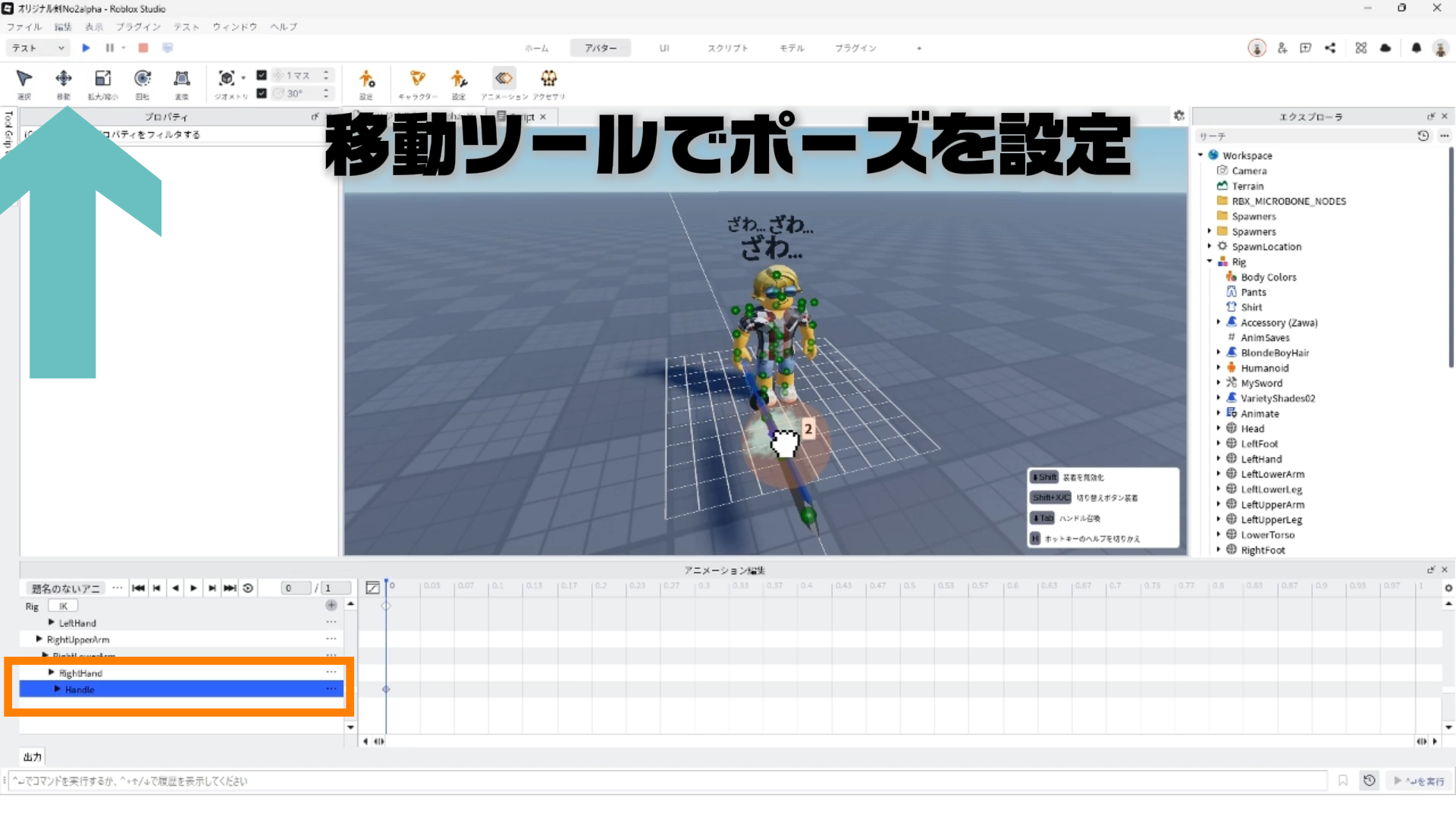
トラックリストのHandleを選択して
STEP.7
「移動」ツールでタイムライン毎に位置を変える
STEP.8
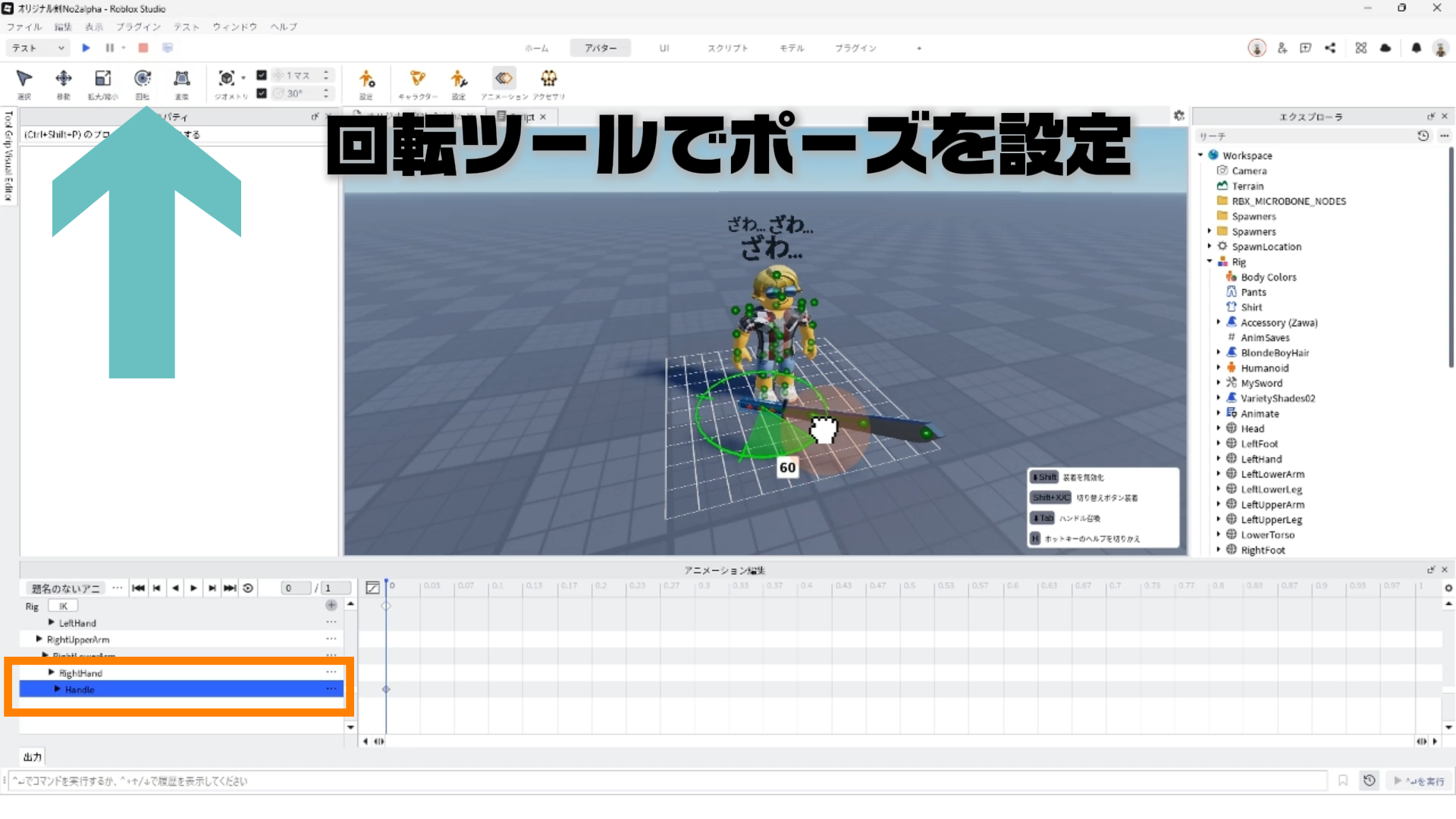
「回転」ツールでタイムライン毎に向きを変える
STEP.9
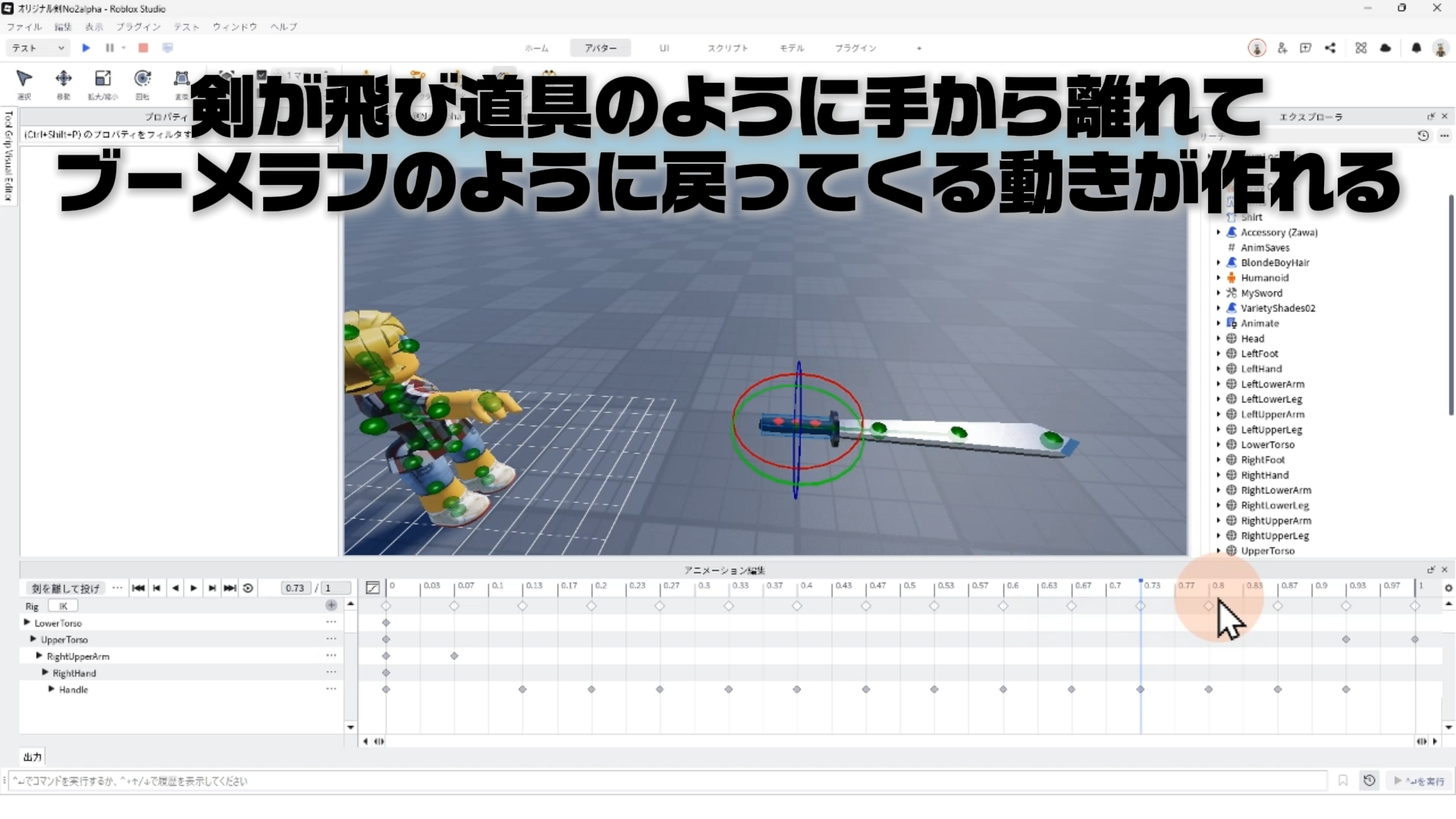
剣が飛び道具のように手から離れてブーメランのように戻ってくるアニメーションが作れる
3. アニメーションエディタの起動と初期設定
STEP.1
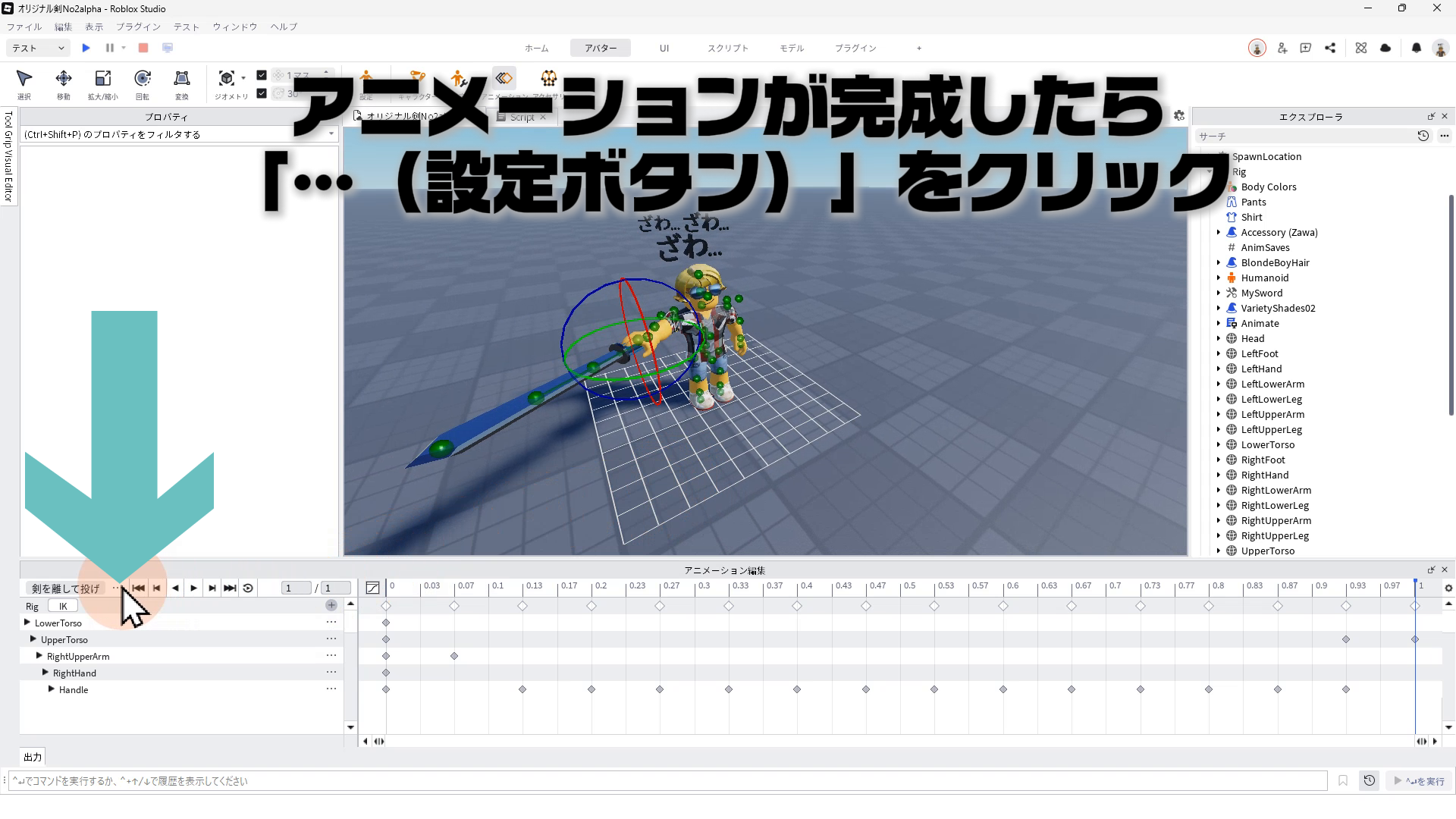
アニメーションが完成したら、画面左下の「…(設定ボタン)」をクリック
STEP.2
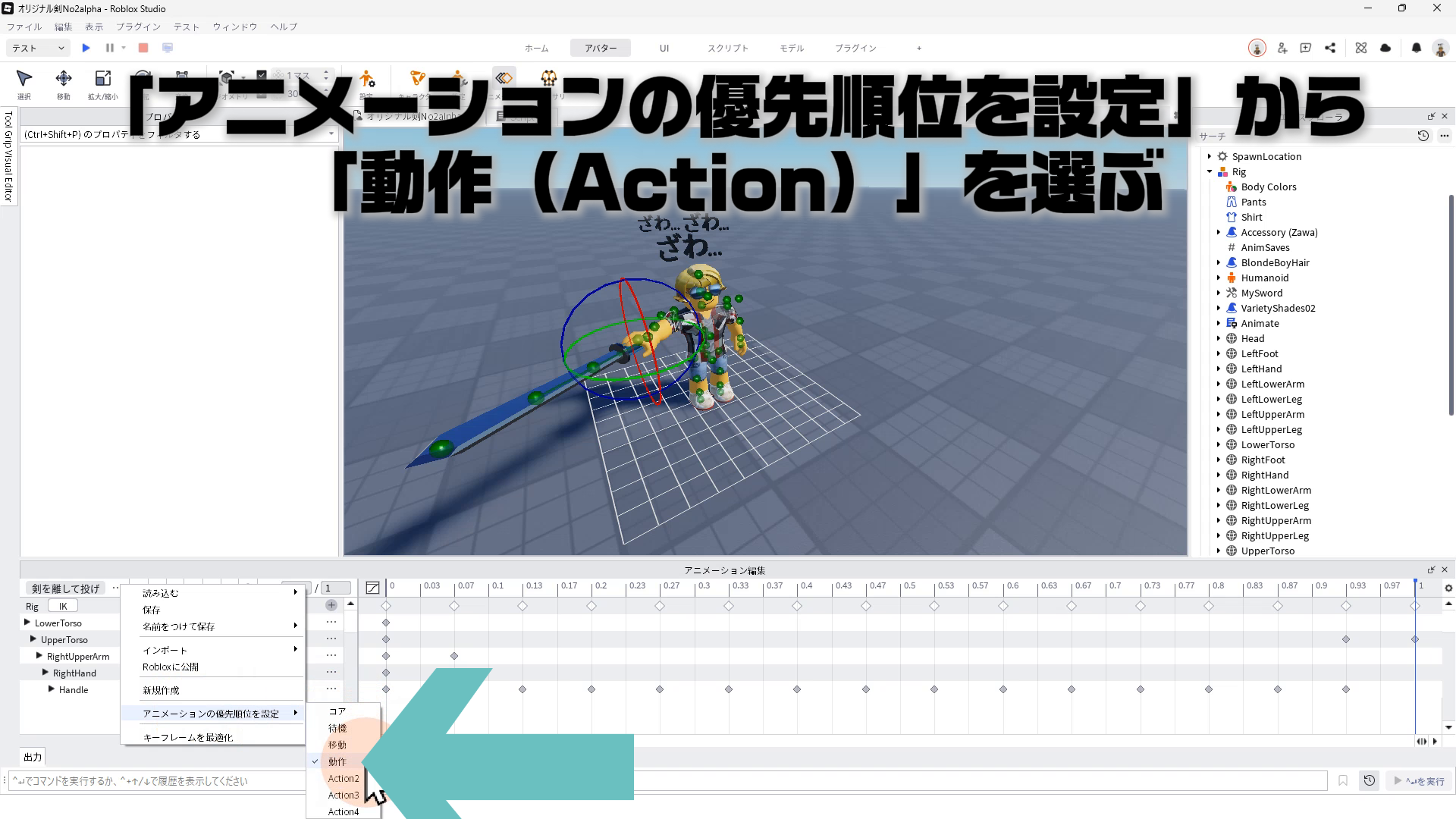
「アニメーションの優先順位を設定」ー「動作(Action)」を選ぶ
STEP.3
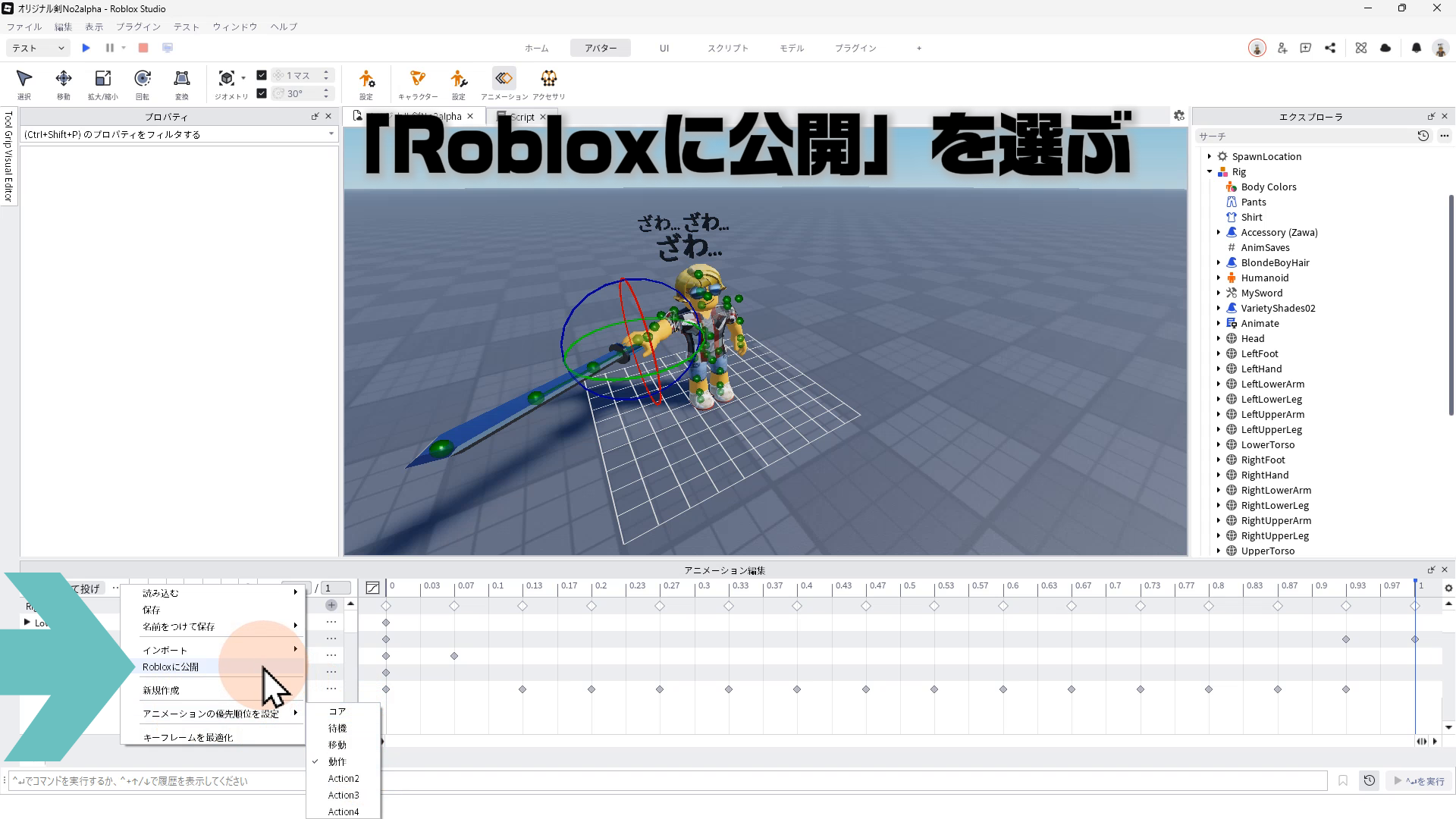
「Robloxに公開」を選ぶ
STEP.4
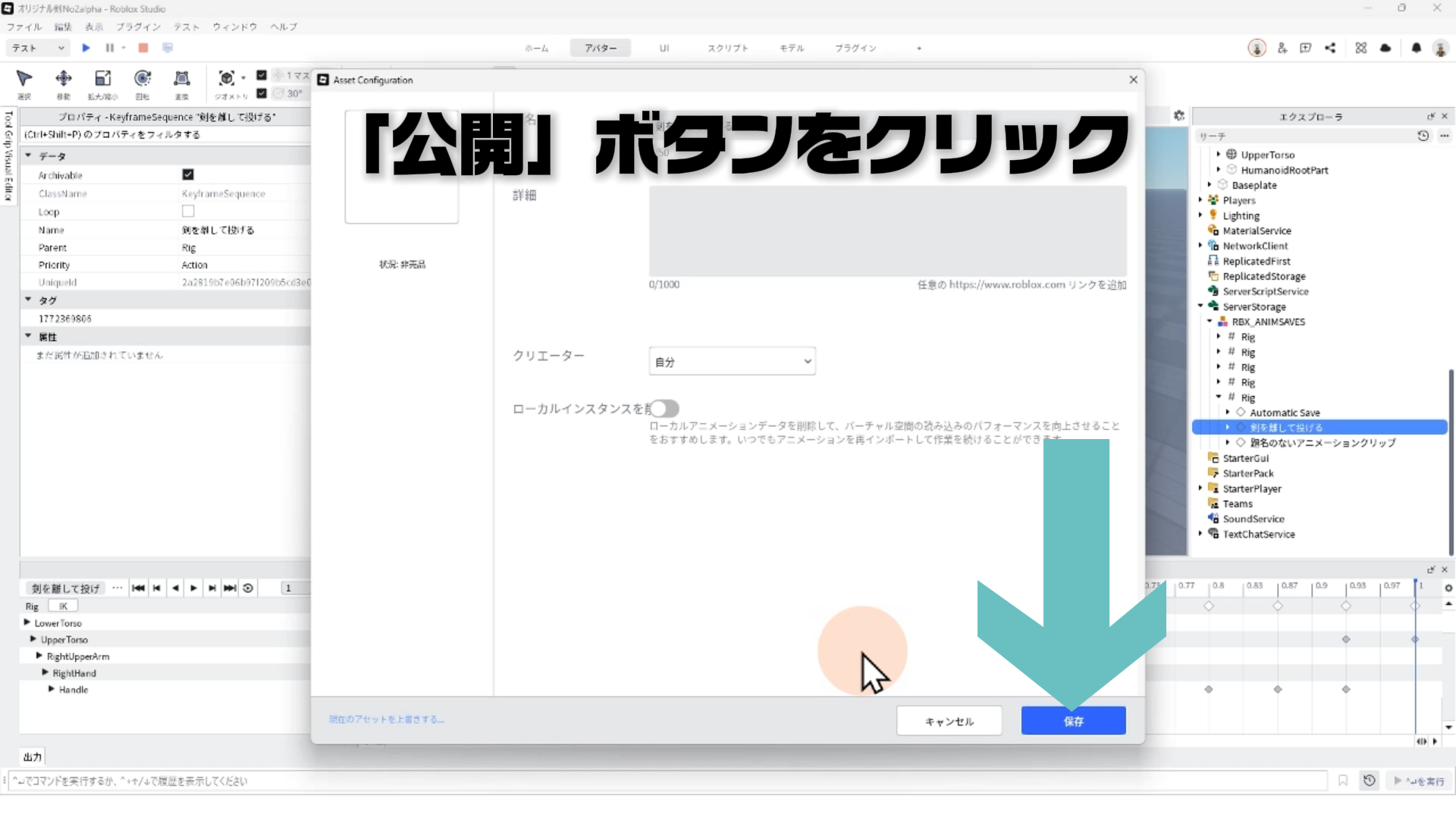
「公開」ボタンをクリック
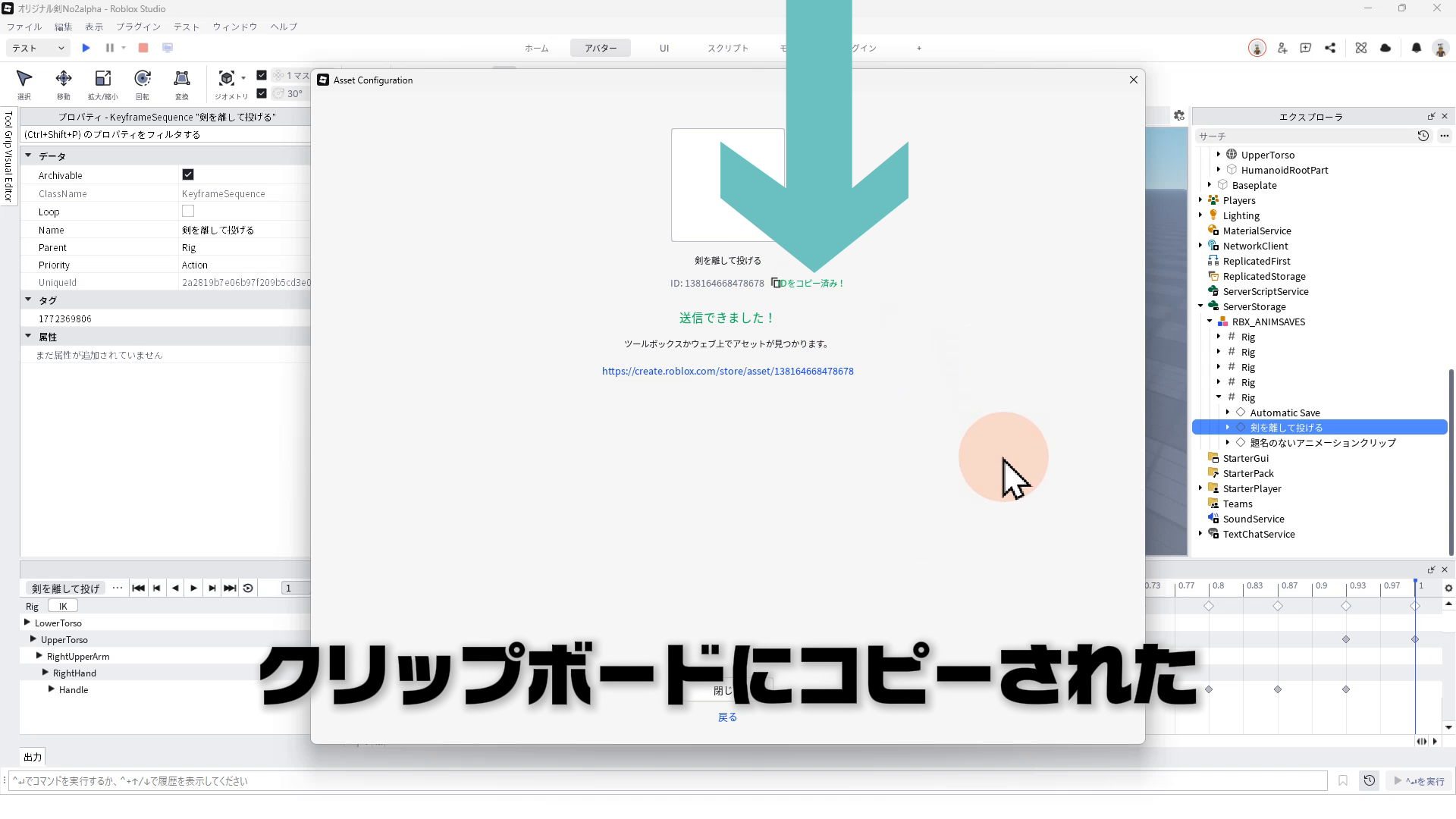
STEP.5
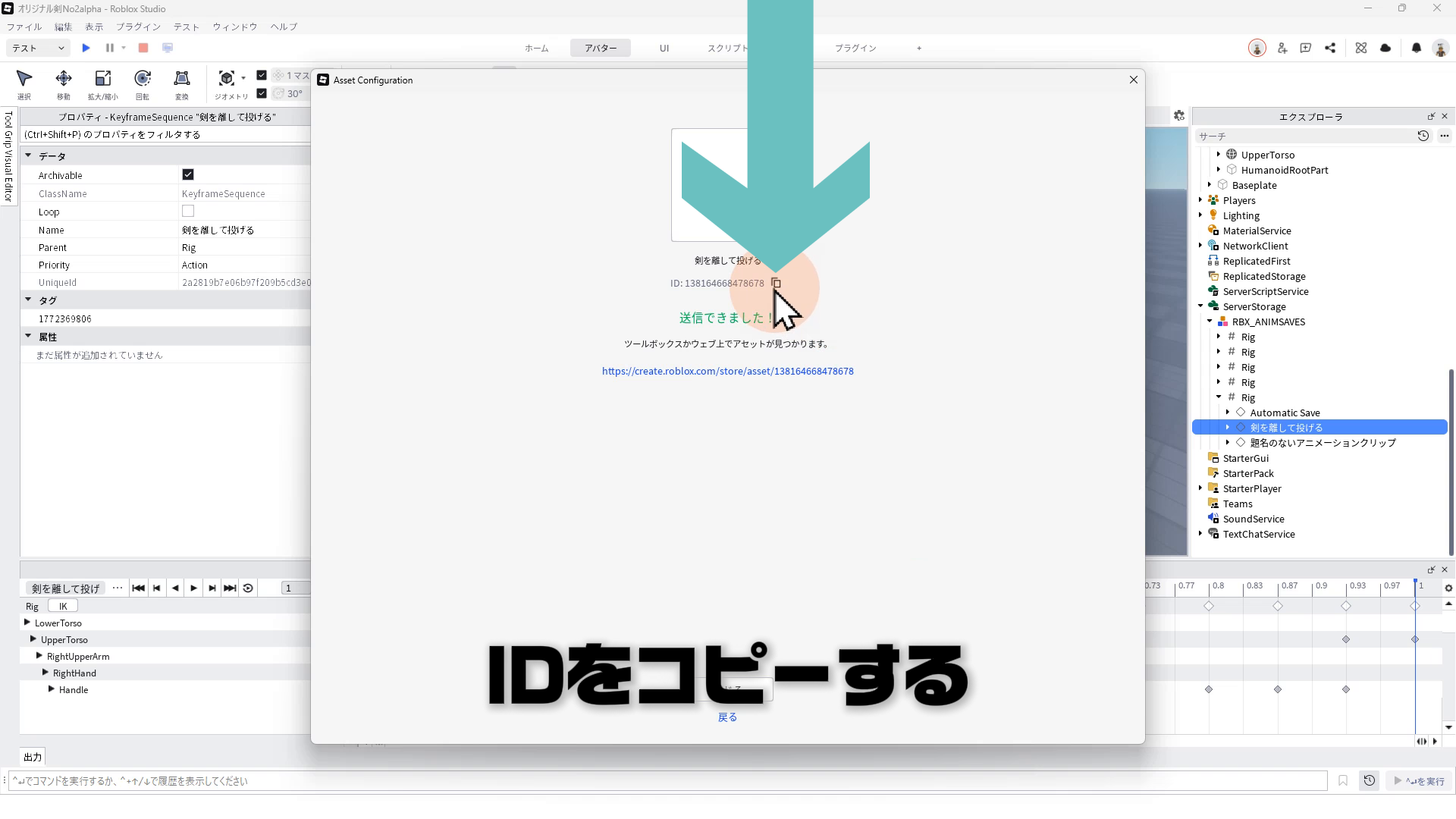
コピーボタンをクリックして、アセットIDをコピーする
STEP.6
クリップボードにアセットIDがコピーされた!
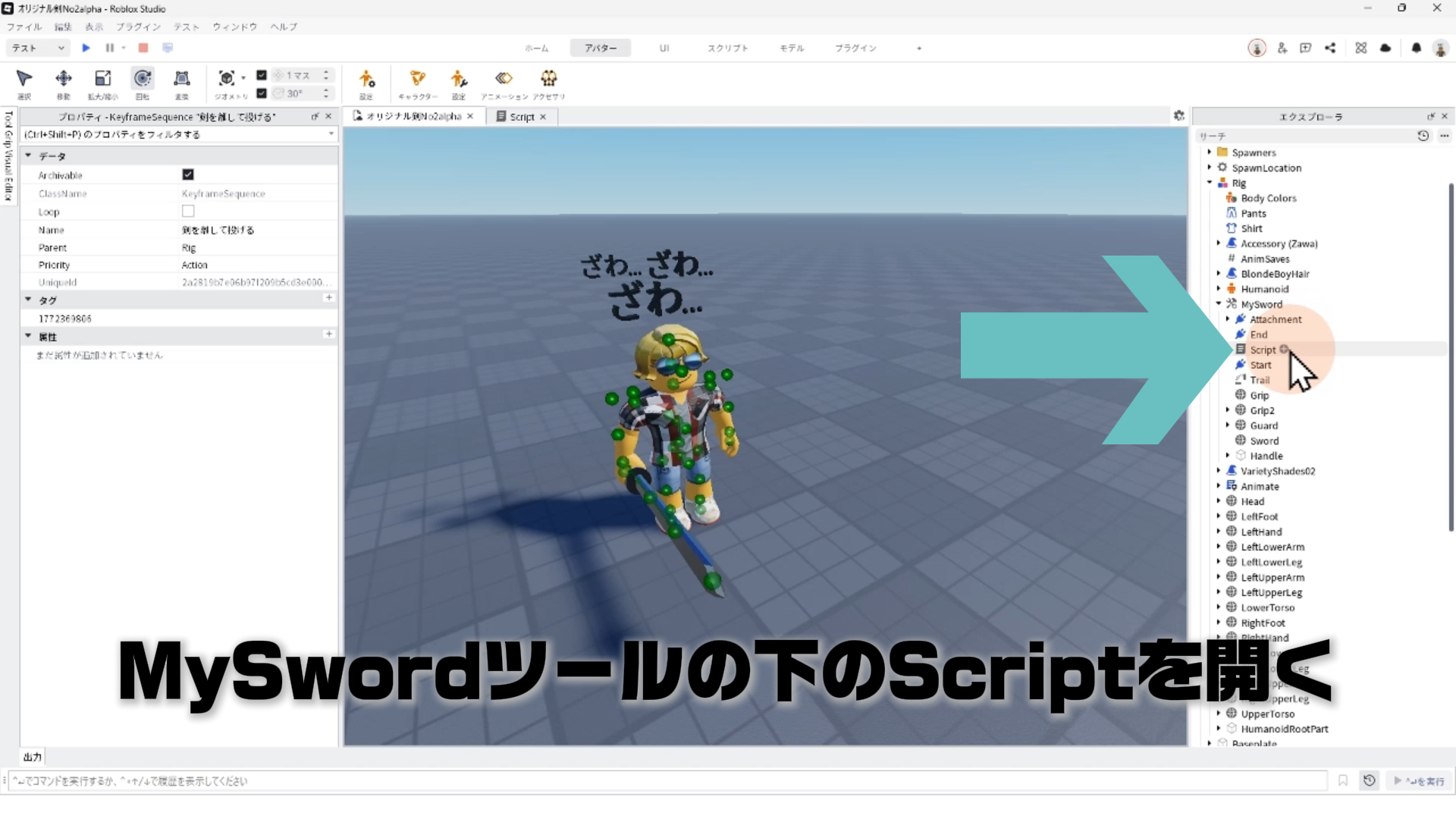
4. アニメーションのスクリプトへの適用
STEP.1
エクスプローラのMySwordツールの下のScriptをダブルクリックして開く
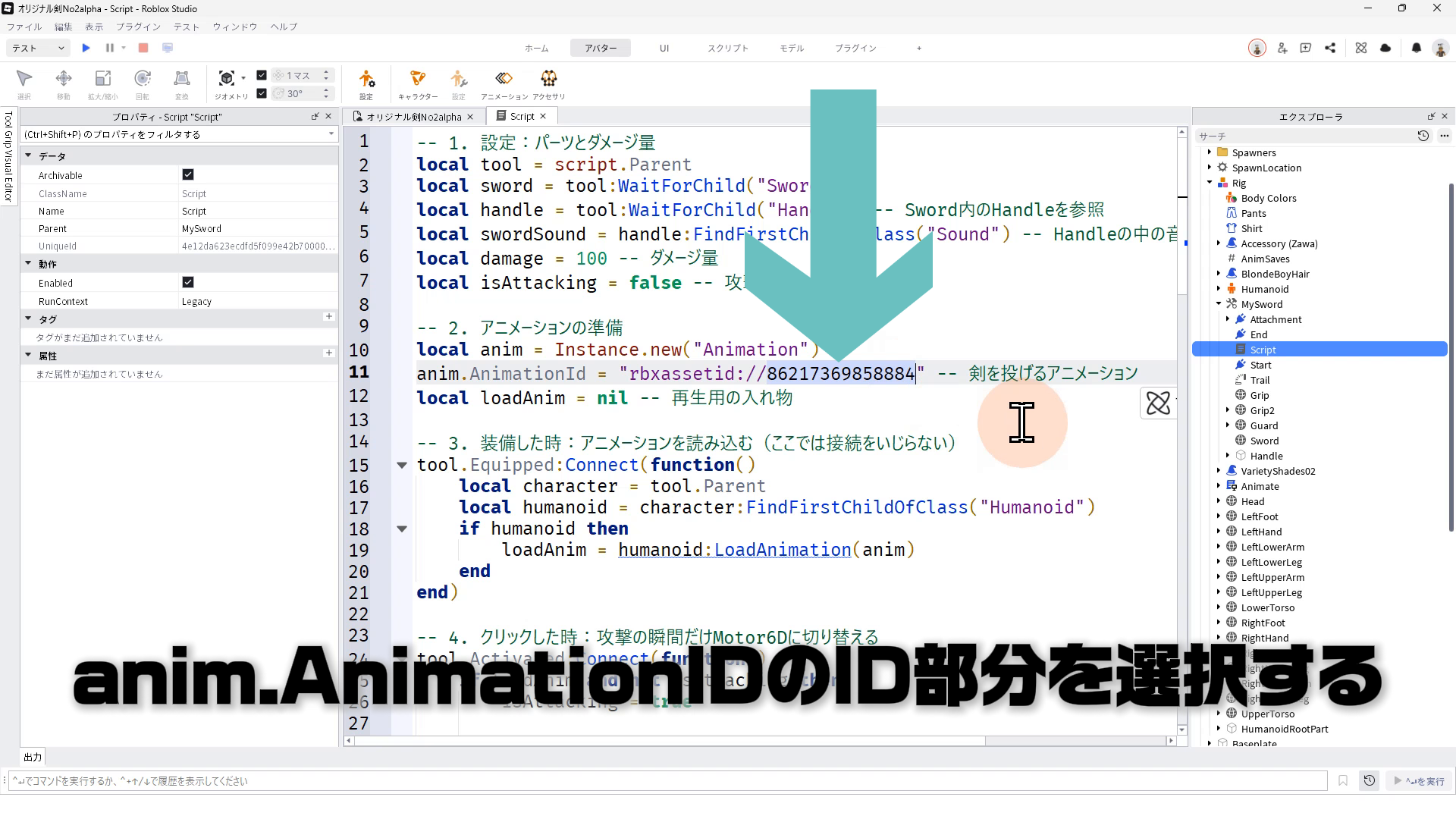
STEP.2
Scriptのanim.AnimationIDのID部分を選択する
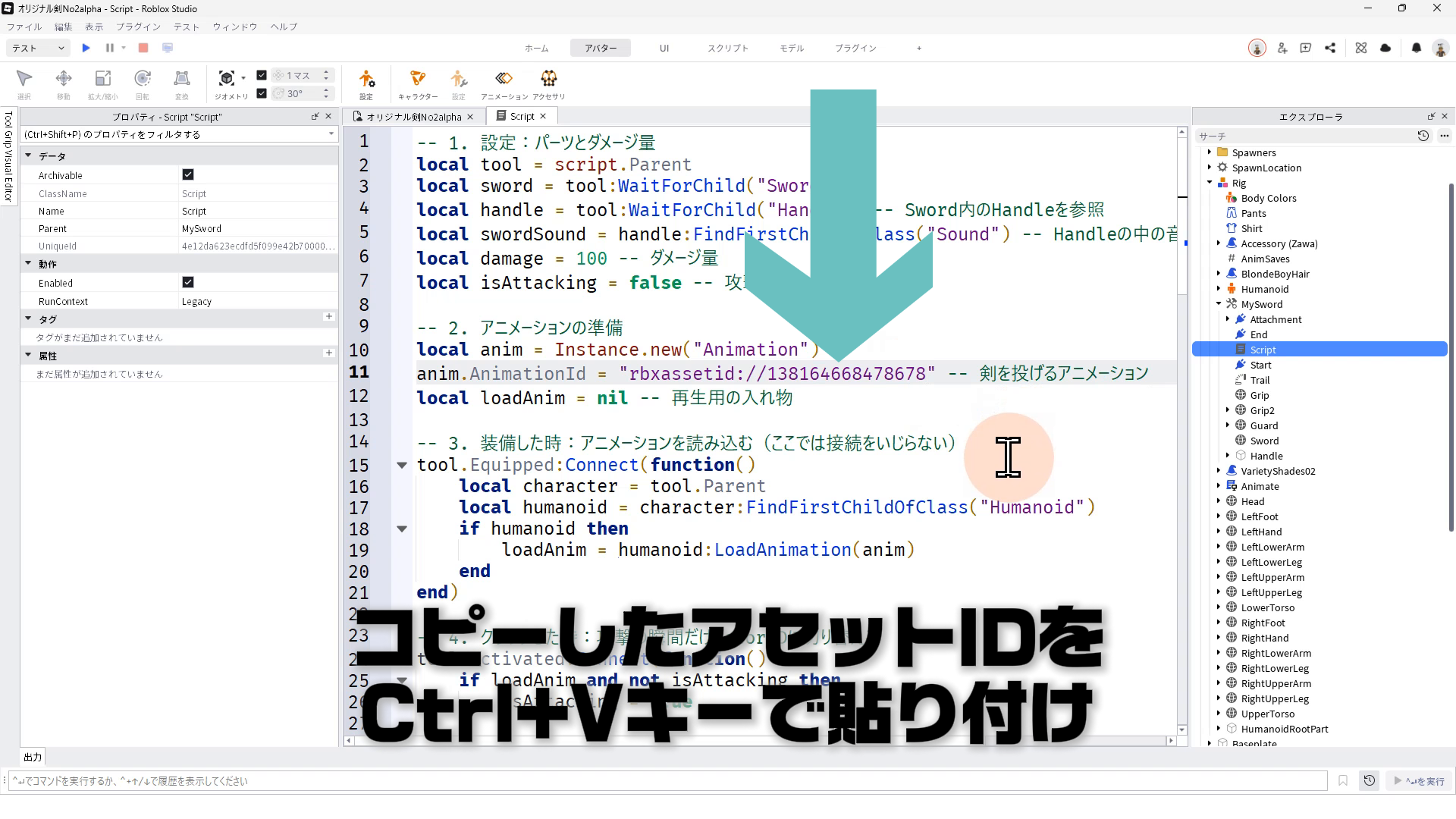
STEP.3
3章コピーしたアセットIDを、Ctrl+Vキーで上書きペーストする
STEP.4
オリジナル剣を作ろうパート2で解説した、4.クリックした時のスクリプトを変更する
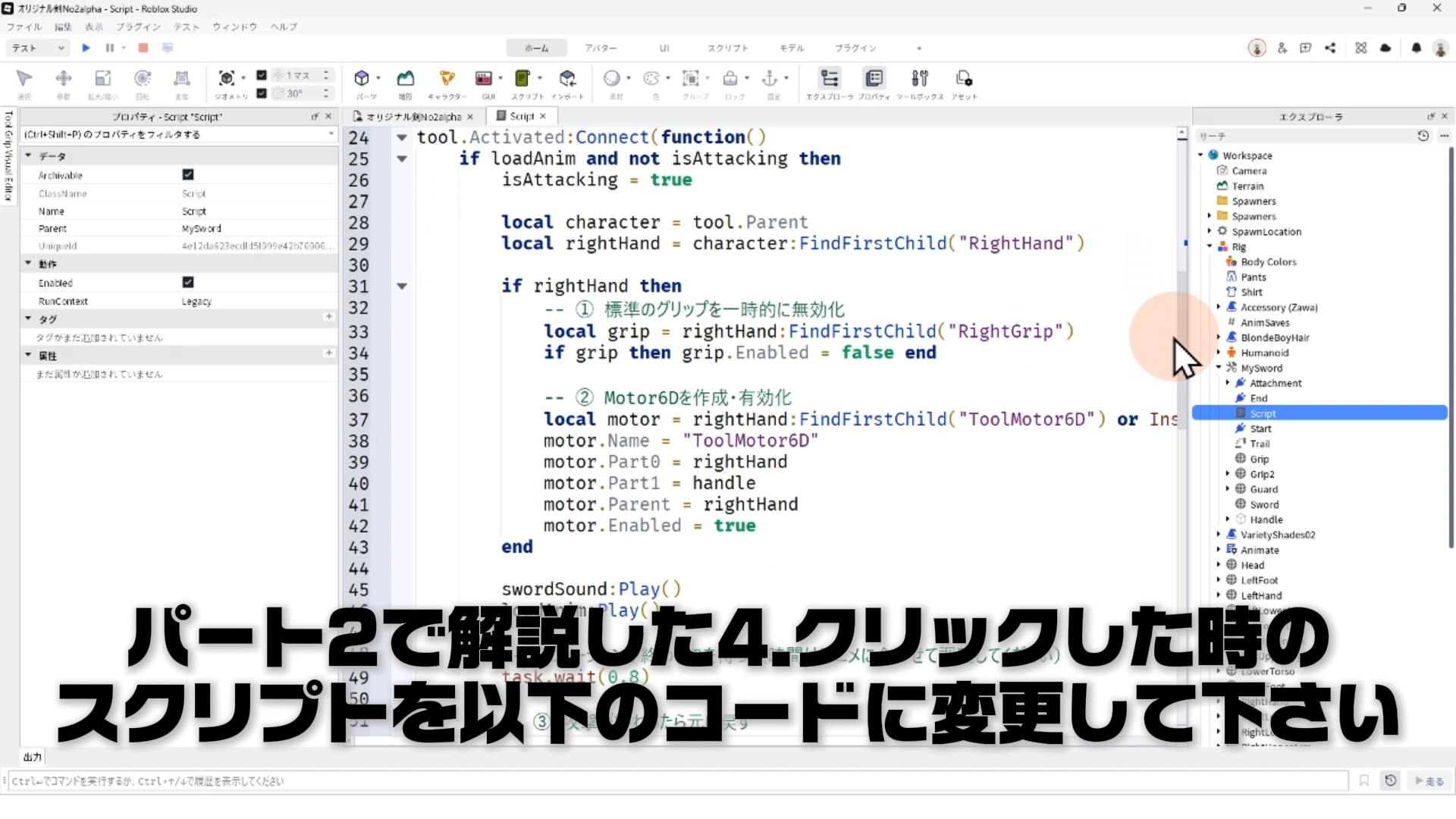
-- 4. クリックした時:攻撃の瞬間だけMotor6Dに切り替える
tool.Activated:Connect(function()
	if loadAnim and not isAttacking then
		isAttacking = true

		local character = tool.Parent
		local rightHand = character:FindFirstChild("RightHand")

		if rightHand then
			-- ① 標準のグリップを一時的に無効化
			local grip = rightHand:FindFirstChild("RightGrip")
			if grip then grip.Enabled = false end

			-- ② Motor6Dを作成・有効化
			local motor = rightHand:FindFirstChild("ToolMotor6D") or Instance.new("Motor6D")
			motor.Name = "ToolMotor6D"
			motor.Part0 = rightHand
			motor.Part1 = handle
			motor.Parent = rightHand
			motor.Enabled = true
		end

		swordSound:Play()
		loadAnim:Play()

		-- アニメーションが終わるのを待つ(時間はアニメに合わせて調整してください)
		task.wait(0.8)

		-- ③ 攻撃が終わったら元に戻す
		local motor = rightHand:FindFirstChild("ToolMotor6D")
		if motor then motor.Enabled = false end -- Motor6Dをオフに

		local grip = rightHand:FindFirstChilad("RightGrip")
		if grip then grip.Enabled = true end -- 標準グリップをオンに戻す

		isAttacking = false
	end
end)
STEP.5
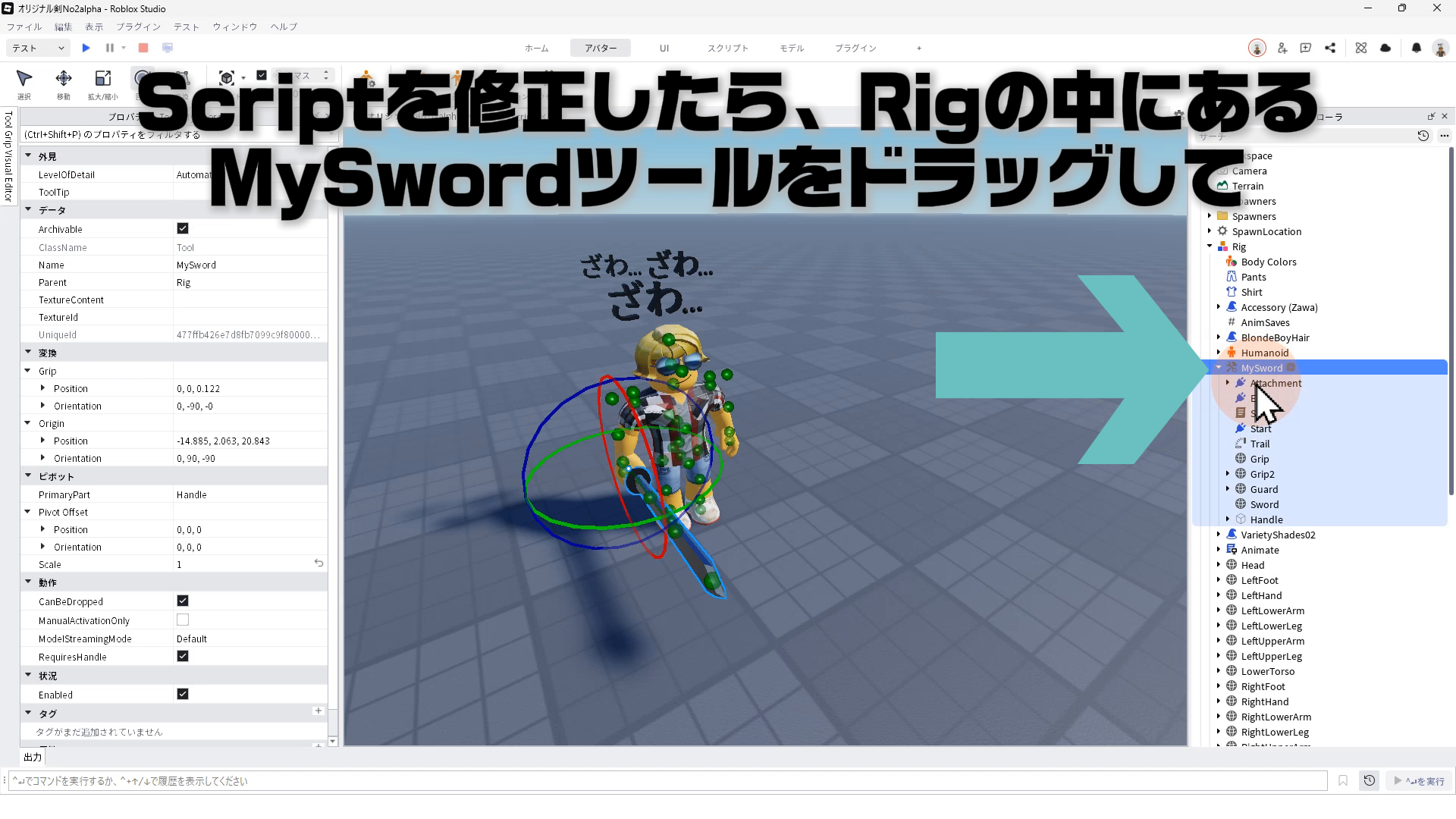
Scriptを修正したら、Rigの中にある「MySword」ツールをドラッグして
STEP.6
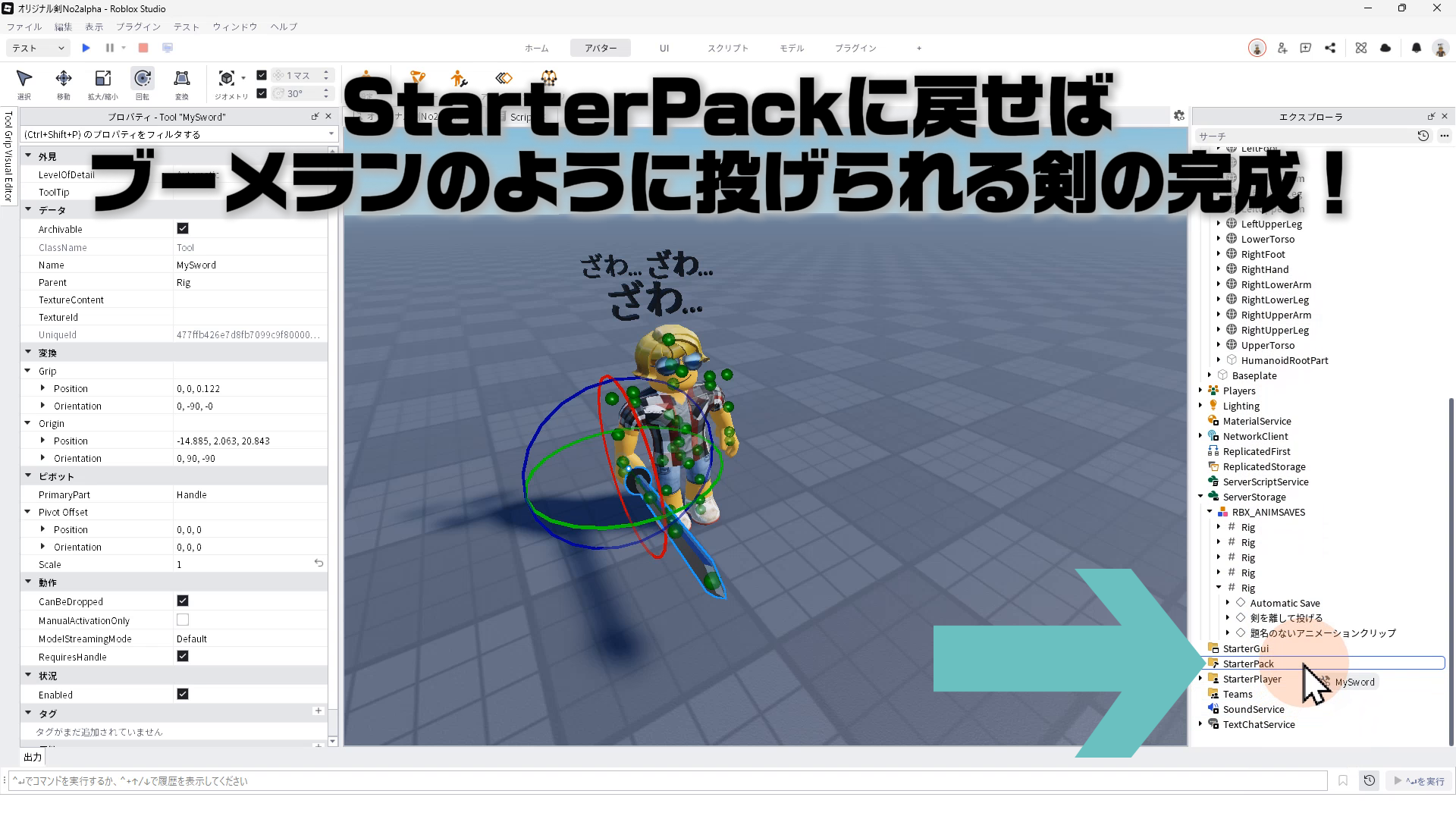
StarterPackに戻せば、ブーメランのように投げられる剣の完成!
5. アニメーションのテスト
STEP.1
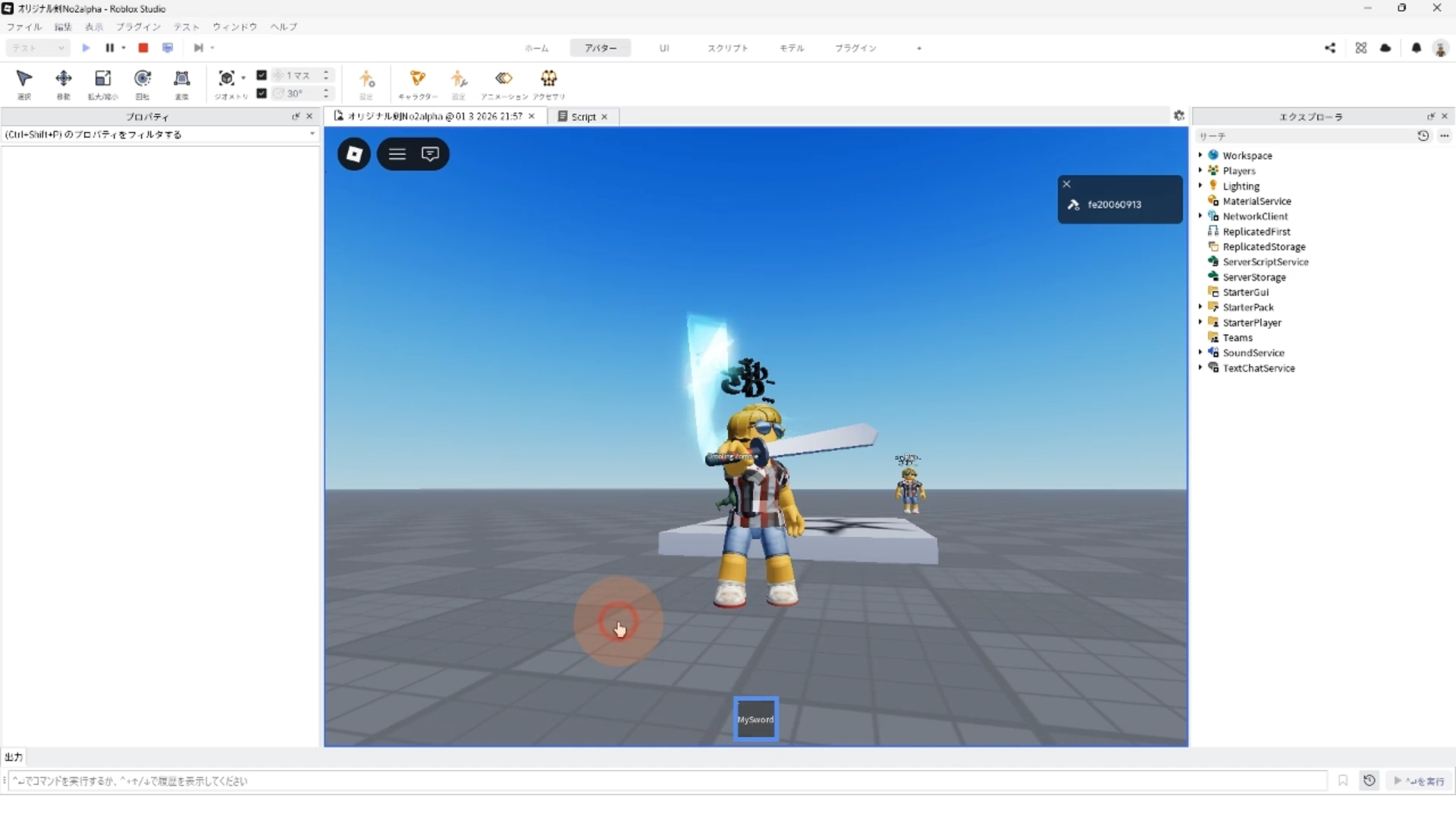
剣ツールを持ってマウス左ボタンをクリックすると
STEP.2
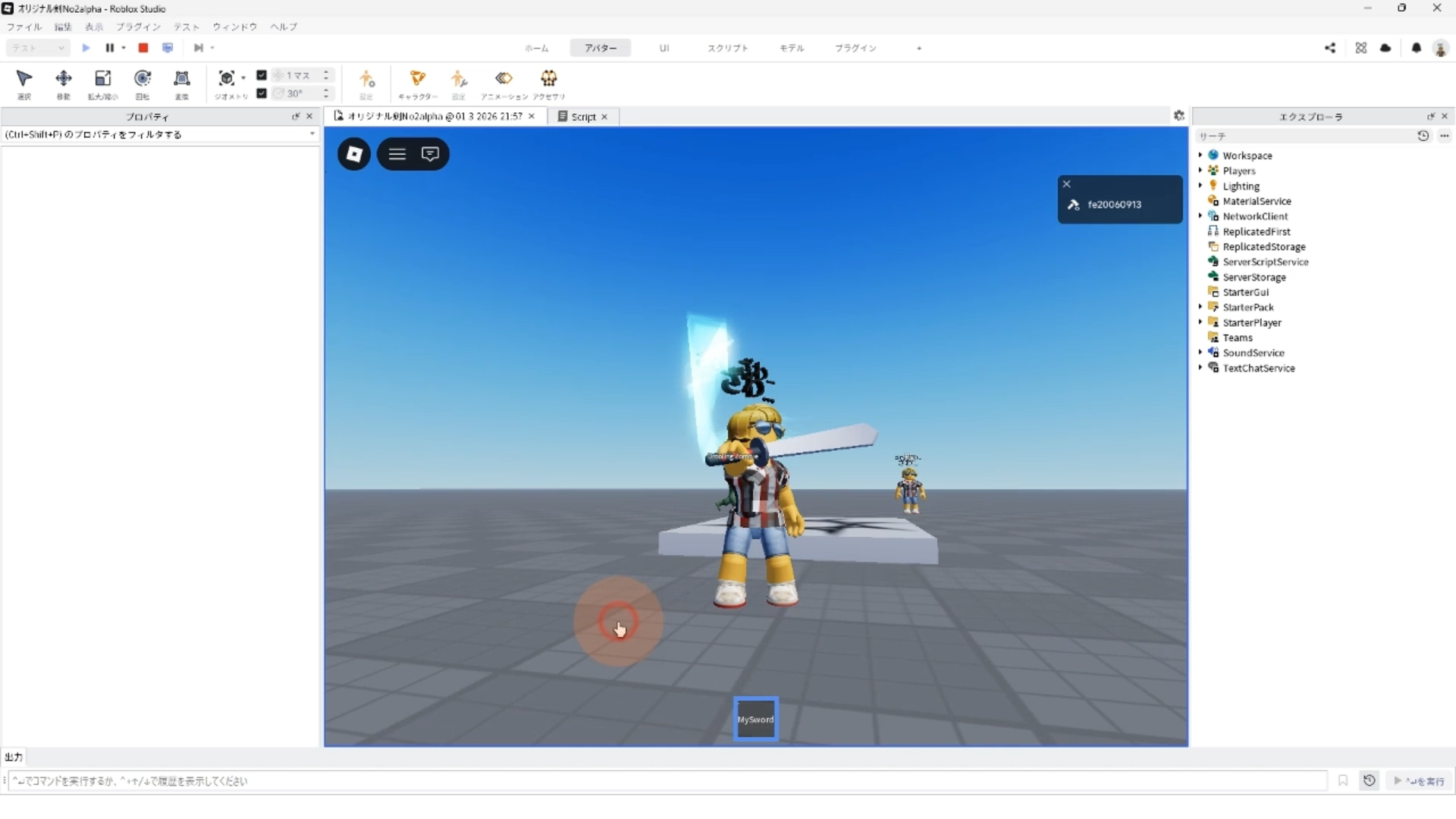
STEP.3
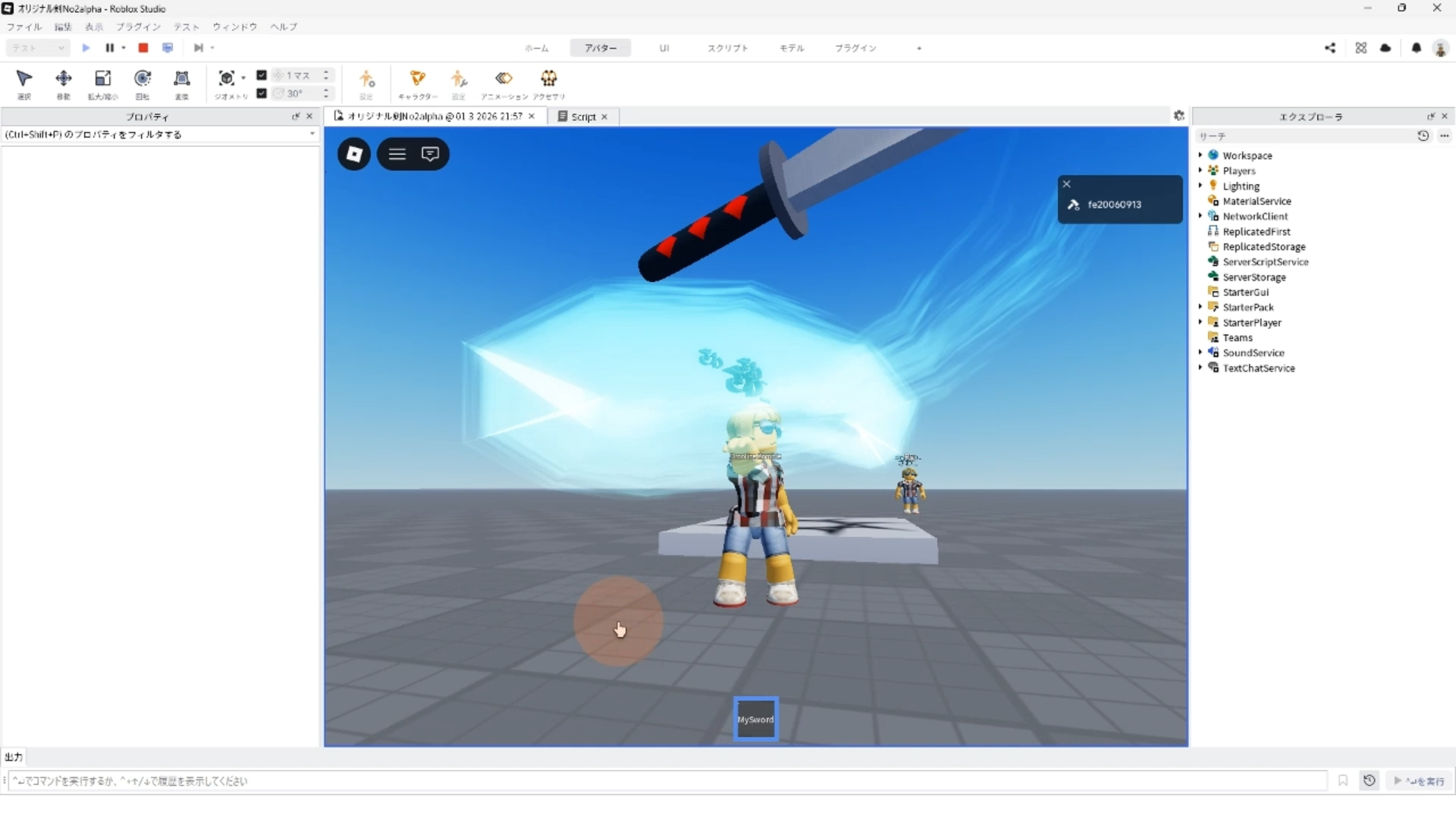
STEP.4
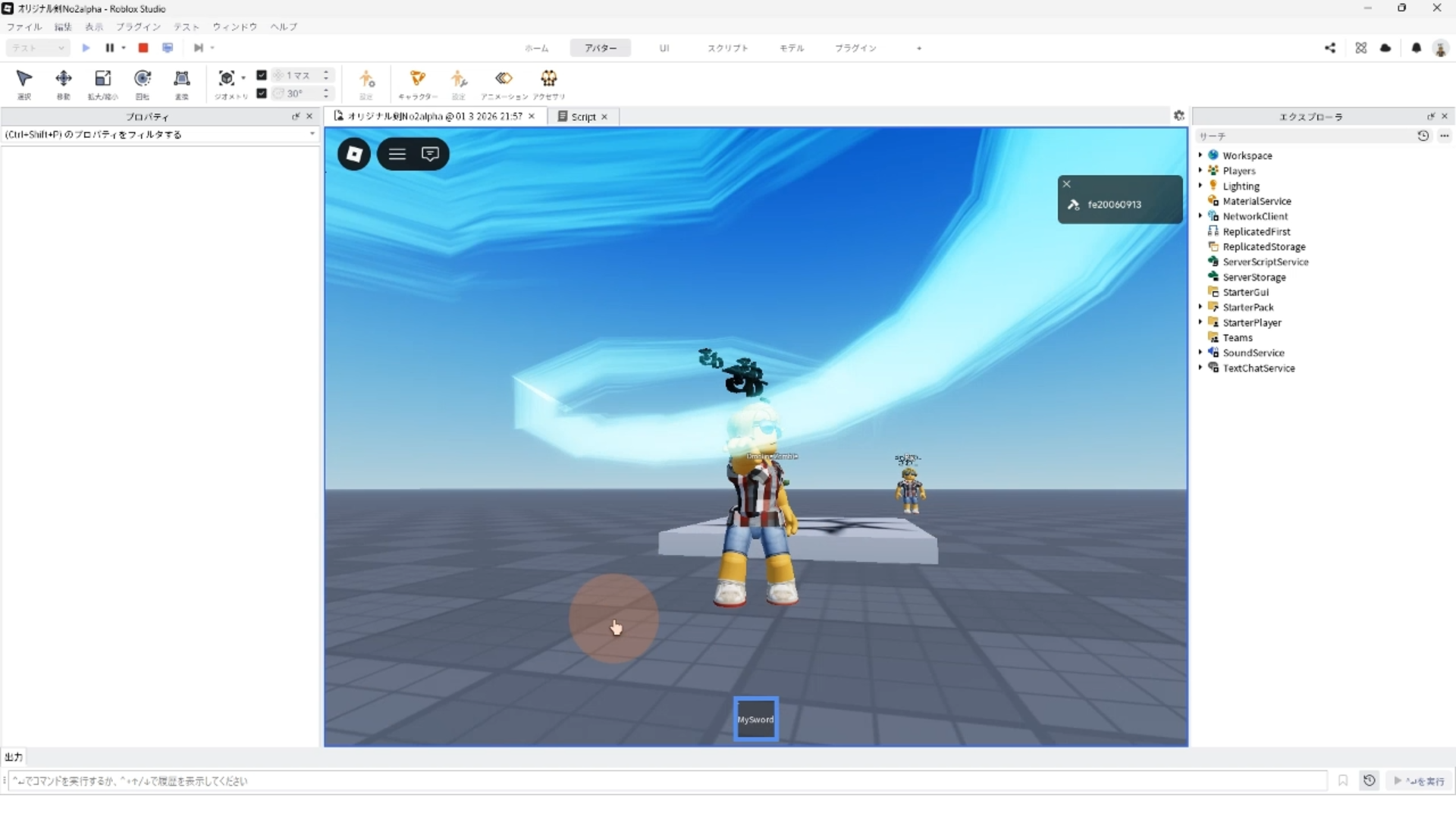
STEP.5
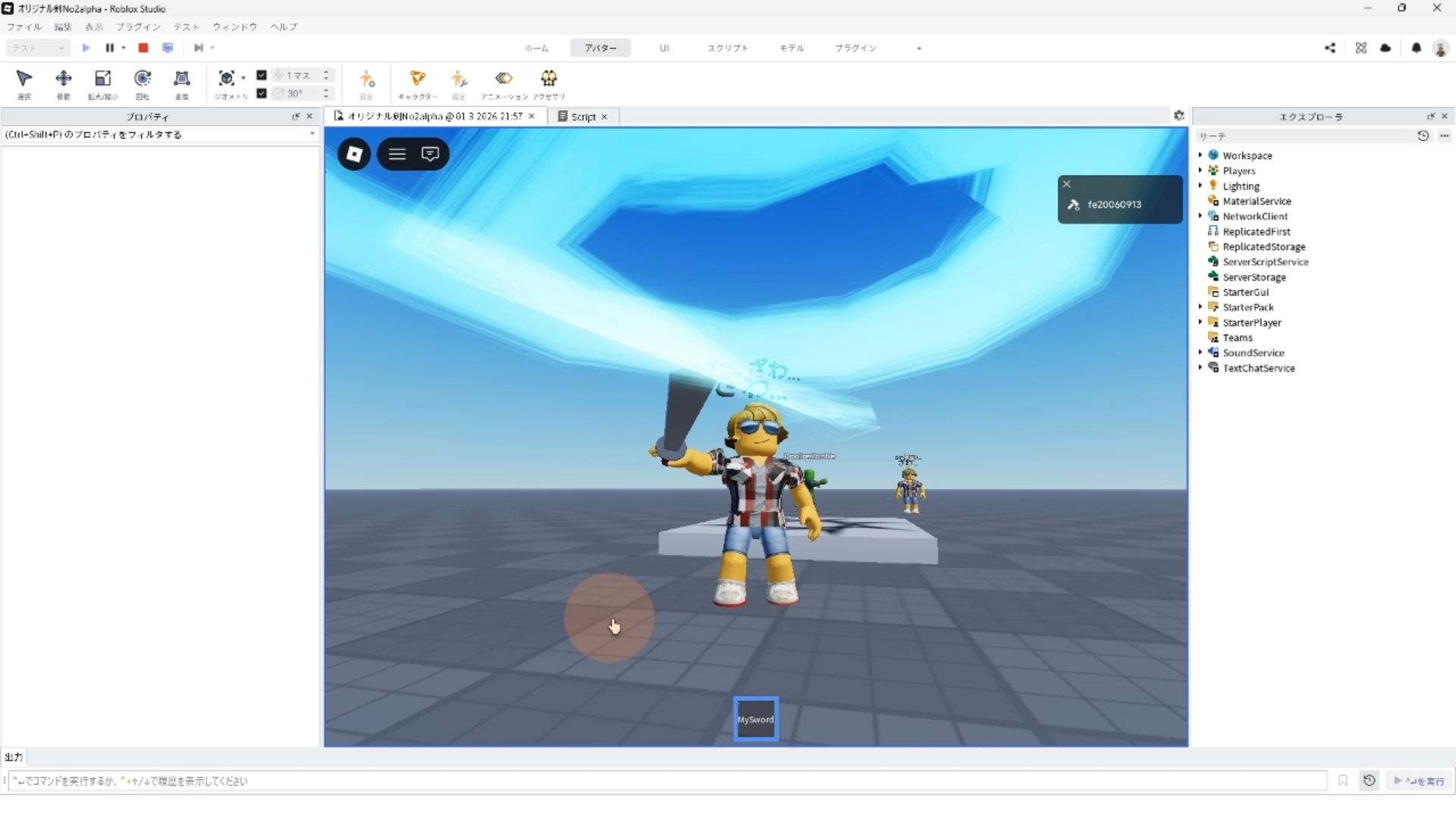
6. スクリプト
-- 1. 設定:パーツとダメージ量
local tool = script.Parent
local sword = tool:WaitForChild("Sword")
local handle = tool:WaitForChild("Handle") -- Sword内のHandleを参照
local swordSound = handle:FindFirstChildOfClass("Sound") -- Handleの中の音を探す
local damage = 100 -- ダメージ量
local isAttacking = false -- 攻撃判定のスイッチ

-- 2. アニメーションの準備
local anim = Instance.new("Animation")
anim.AnimationId = "rbxassetid://138164668478678" -- 剣を投げるアニメーション
local loadAnim = nil -- 再生用の入れ物

-- 3. 装備した時:アニメーションを読み込む(ここでは接続をいじらない)
tool.Equipped:Connect(function()
	local character = tool.Parent
	local humanoid = character:FindFirstChildOfClass("Humanoid")
	if humanoid then
		loadAnim = humanoid:LoadAnimation(anim)
	end
end)

-- 4. クリックした時:攻撃の瞬間だけMotor6Dに切り替える
tool.Activated:Connect(function()
	if loadAnim and not isAttacking then
		isAttacking = true

		local character = tool.Parent
		local rightHand = character:FindFirstChild("RightHand")

		if rightHand then
			-- ① 標準のグリップを一時的に無効化
			local grip = rightHand:FindFirstChild("RightGrip")
			if grip then grip.Enabled = false end

			-- ② Motor6Dを作成・有効化
			local motor = rightHand:FindFirstChild("ToolMotor6D") or Instance.new("Motor6D")
			motor.Name = "ToolMotor6D"
			motor.Part0 = rightHand
			motor.Part1 = handle
			motor.Parent = rightHand
			motor.Enabled = true
		end

		swordSound:Play()
		loadAnim:Play()

		-- アニメーションが終わるのを待つ(時間はアニメに合わせて調整してください)
		task.wait(0.8)

		-- ③ 攻撃が終わったら元に戻す
		local motor = rightHand:FindFirstChild("ToolMotor6D")
		if motor then motor.Enabled = false end -- Motor6Dをオフに

		local grip = rightHand:FindFirstChilad("RightGrip")
		if grip then grip.Enabled = true end -- 標準グリップをオンに戻す

		isAttacking = false
	end
end)

-- 5. 刃が触れた時:ダメージを与える
sword.Touched:Connect(function(hit)
	if isAttacking then
		local character = tool.Parent
		local targetChar = hit.Parent
		local targetHuman = targetChar:FindFirstChildOfClass("Humanoid")

		-- 自分以外かつ人間(またはモンスター)ならダメージ
		if targetHuman and targetChar ~= character then
			targetHuman:TakeDamage(damage)
			isAttacking = false -- 連続ヒット防止
		end
	end
end)
Roblox Studioとは?
Roblox Studioは、Roblox用の カスタムゲームを作成できる公式の無料 ユーティリティソフトウェア。ミニゲーム、障害物コース、ロールプレイングストーリーなど、さまざまなゲーム作ることが出来ます 。プログラミング言語Luaを利用してプログラミングします。Robux(ロバックス)と呼ばれる仮想キャッシュを、ゲーム内アイテムに対して使用することで収益を得る仕組みを構築することも出来るので、子供たちはゲーム開発を通じでビジネスの感覚が身につけられる。
Robloxとは?
Robloxは、ユーザーがRoblox Studioを使ってゲームをプログラムしたり、他のユーザーが作成したゲームをプレイしたりできるオンラインゲーミングプラットフォームおよびゲーム作成システムです。